
Creating Microsoft Teams Meetings
Easily create Microsoft Teams meetings in the projectfacts calendar and send invitations to your team members.
Online meetings with Microsoft Teams
Team communication is particularly important for business success. That is why projectfacts offers numerous ways for your employees to exchange information with one another. Tools such as the calendar, file management and the internal wiki help to collaborate productively in times of home office.
For some time now, video conferences have also become part of everyday life in companies worldwide. It is no coincidence that tools like Microsoft Teams or Slack are so popular. Microsoft Teams meetings in particular have become indispensable in many companies and have established themselves in many places as the “de facto standard” for online meetings.
To make digital collaboration even smoother, Microsoft Teams meetings can now be integrated into projectfacts. To this end, we have created the ability with version 6.11 to schedule Teams meetings directly in projectfacts.
Integrating Microsoft Teams
To create Teams meetings in projectfacts, the interface must first be activated and set up. Our advisory team will be happy to support you with this.
For the setup, switch in the Configuration to the General menu item. Click there on the Interfaces option. In the action box, you must first grant projectfacts administrator permission via the Grant access to Microsoft Graph button. You can then assign your employees to the appropriate users via the Assign Azure AD users button.
Creating a Teams meeting
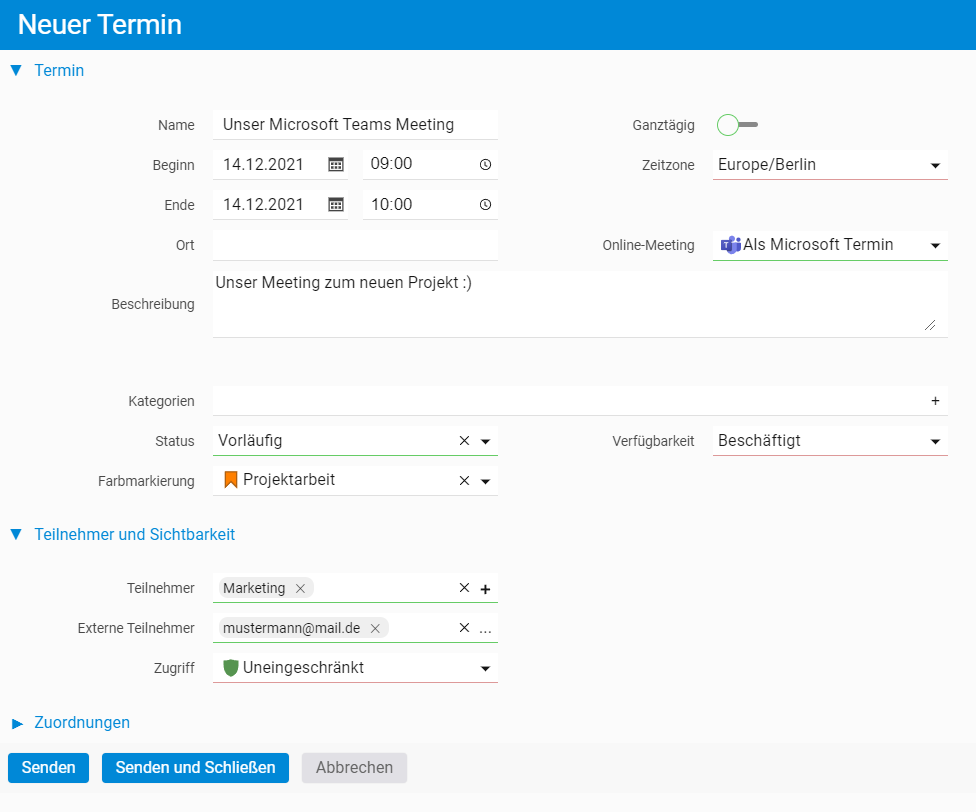
Once the setup is complete, click on the ”+” symbol in the calendar as usual and select New appointment or use the button in the action box. In the following dialog, select “As Microsoft appointment” via the Online meeting field.
You can now enter all appointment details and add the desired participants for the appointment. Via the Participants field you can access any groups or people within your organisation. Add external participants via the selection below.
Sending invitations
Once you have finished creating the appointment, simply click on Send or Send and close. Microsoft will then automatically send invitations to all participants you have entered. The title and description text are automatically included in the e-mail.
If you change details within the master data of an appointment, e.g. the time or the description, an updated invitation will automatically be sent to all participants of the meeting.
Joining the meeting
To join a Teams meeting, you can either click on the link in the invitation e-mail or start the appointment from your projectfacts calendar.
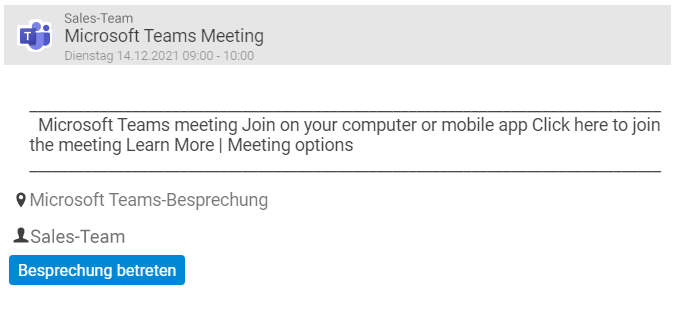
Move your mouse over the relevant appointment and a preview opens above it. Here you can simply click the Join meeting button. Alternatively, you will find the Join Teams meeting button in the calendar entry under the Properties tab.
If you want to add further external participants to the ongoing meeting, simply share the link to the meeting. You will find it in the Meeting link field.
Further questions?
Do you have further questions or are you interested in details about the Microsoft Teams integration? Simply contact us – our advisory team will be happy to help.
Are you already using Microsoft Teams and looking for suitable ERP software? projectfacts offers you a digital solution for all important business processes. Try the software for 14 days free of charge and without obligation.