
Next Steps for Your Documents
Define the next processing steps for your quotes, invoices and other documents. Try it now!
Automate tasks – directly with the document
In many companies, documents are closely linked to recurring workflows. A quote needs to be followed up after it has been sent, an order leads to further internal tasks, and an invoice may be accompanied by a customer survey. With the “Next Steps” module from teamspace, such workflows can be integrated directly into your document processes. As soon as a document of a certain type is created or validated, the system automatically creates the appropriate follow-up tasks – entirely without manual intervention. This saves time, reduces errors and ensures clearly defined processes.
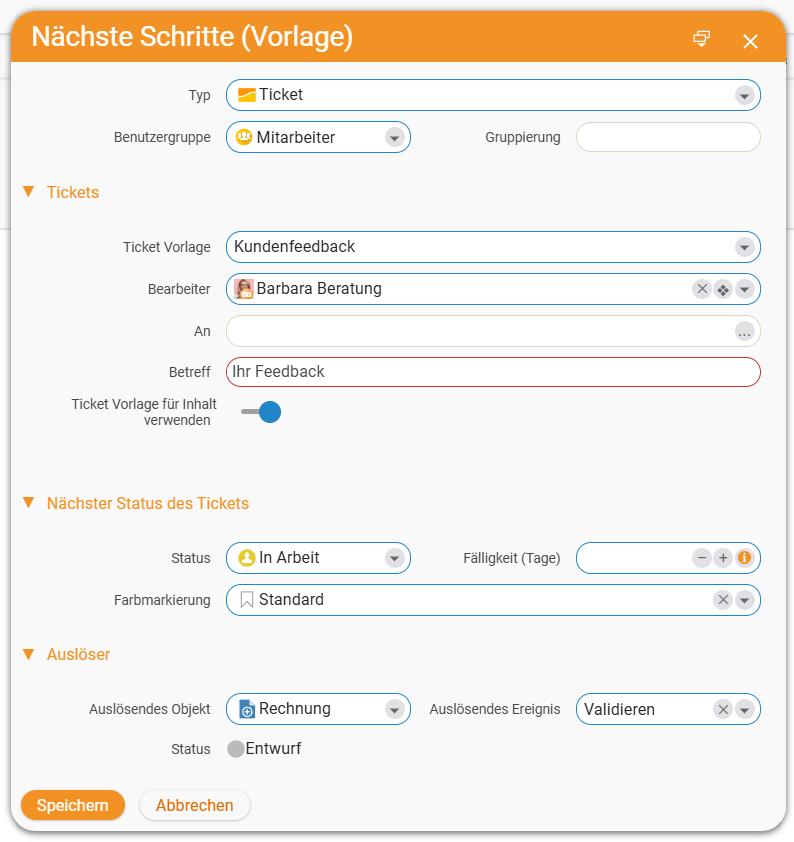
Automatically collect customer feedback
Would you like to also ask customers directly for their opinion of your services when sending the invoice? No problem. With teamspace you can simply create a ticket template for this. You can find out exactly how this works in our article on ticket templates. This can now be linked to the invoice. To do so, create a next-step template in the configuration and enter the ticket template.
As soon as an invoice is validated, the system will now automatically create a new ticket based on the settings you have stored. In this way, manual creation and the separate sending of e-mails are eliminated – the entire process is automated and runs in the background. A due date for following up can also be defined in advance.
Collecting customer feedback thus becomes a fully automated process. All you need to do is wait for the customers’ response!
Automatically trigger internal follow-up processes
Let us assume you would like to send your potential new customers a brochure with information about your company after the quote has been sent. To make sure it is not forgotten, you can have a corresponding reminder generated automatically. To do this, simply create a next step in the quote template and select the type “Open item”. Optionally, you can directly select a person responsible for it and write a brief description text. In this case, the triggering event is the validation of a quote. In this way, every time you finalise a new quote, a to-do is automatically created for the employee to send the sales brochure. Gone are the days of having to remember this and perhaps even write an e-mail.
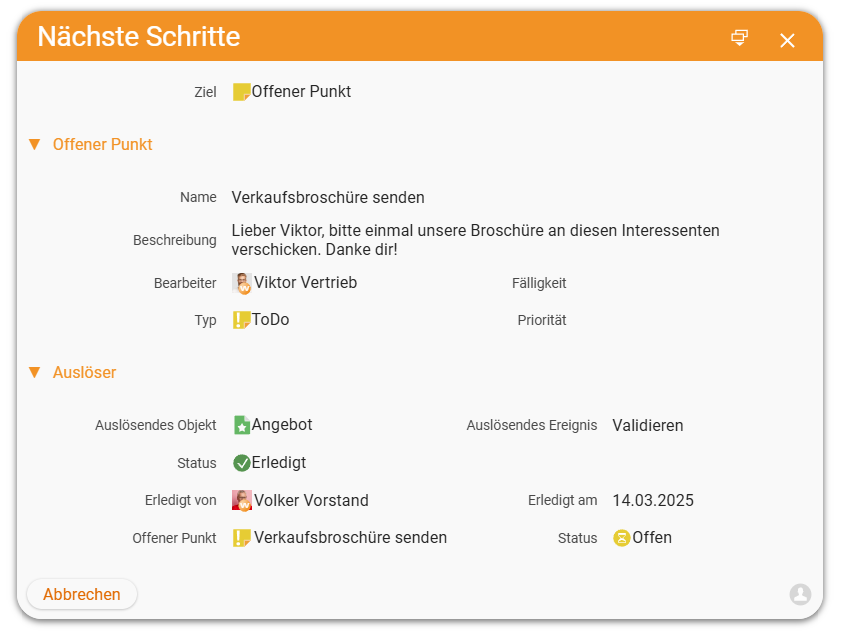
Let us consider another use case: with every new order you need to submit an application to an authority before you can begin implementation. This is a very important step, as work may not begin without the authority’s approval. To make sure the application is not forgotten – and the resulting missing approval could potentially become costly and time-consuming – simply create a next-step template here too with the corresponding to-do, ensuring the task is not overlooked. Once the application has been submitted, the open item can be marked as completed. If needed, you can immediately create a further step to also document the approval. This way you keep track of everything and ensure that all important steps in the order are documented.
Viewing and completing next steps
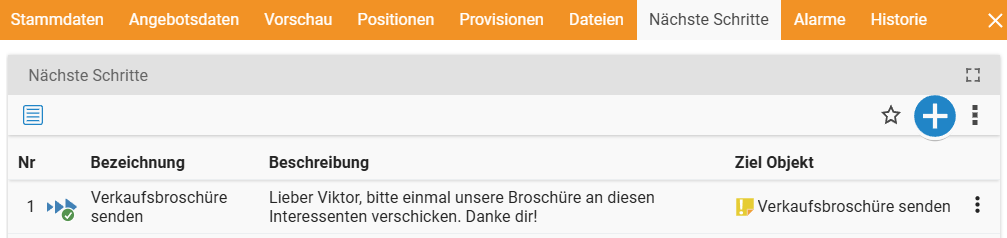
The pending and already created next steps can be viewed in a separate tab on the document. There you can verify that all pre-defined items are automatically generated upon validation, or trigger them manually. You can also see here whether open items have already been completed.
Getting to know next steps better
This article only shows a glimpse of the possibilities that the “Next Steps” module in teamspace offers you. If you would like to find out more, we are happy to advise you and support you with the setup. You can also find out more in the corresponding help centre article. If you are not yet using teamspace, you can get in touch with our advisory team at any time. We look forward to hearing from you.