
Outlook Add-in for Ticket Import
Use the Outlook add-in to quickly and easily transfer emails from your personal mailbox to the projectfacts ticket system.
The ideal complement to your ticket system
A ticket system is the ideal solution for your support or helpdesk. It allows you to collect, channel, and efficiently handle incoming customer inquiries. The ticket system automatically assigns an ID to each incoming request, which is used for all transactions related to that request. This makes it easy to gather all internal and external communication regarding a customer issue in one place. Through the ticket, you can quickly get an overview of…
- what topic it concerns,
- which employee is currently working on it
- and what status the ticket is in.
Sometimes, however, customers do not contact the company’s general email address but instead reach out to your personal email address. In this case, the customer inquiry does not end up in the ticket system, but in your personal mailbox. Of course, you can continue to work with it from there, but handling support requests in email clients such as Microsoft Outlook is cumbersome.
It is easy to lose track of which emails or tasks are currently pending and by when they need to be completed. This is where conventional email programs reach their limits. A better solution would be one that allows you to quickly and easily transfer personal messages to your ticket system.
Converting Outlook emails into projectfacts tickets
We are pleased to present: our new Outlook add-in for ticket import. Use it to forward emails from your Outlook mailbox to the projectfacts ticket system in just a few clicks. This way, no message gets lost and you benefit from seamless documentation in the projectfacts ticket system.
Simply add the projectfacts add-in to your Outlook mailbox. This works both with your local email client and with the Outlook web client. Select any email and convert it into a projectfacts ticket using the add-in workspace. When creating the ticket, you have various options:
- Ticket channel: Use the upper dropdown to select the ticket channel into which the email should be transferred. In our case, we select the “Support” channel, as it is a customer inquiry.
- Ticket status: Use the lower dropdown to set the status the ticket should have in projectfacts. By default, the first status defined for the workflow of the respective ticket channel is set automatically. However, you can also set the status manually, e.g. to “Resolved”, if you have already answered an email and just want to file it for documentation purposes.
- Register as owner: This checkbox allows you to automatically register yourself as the owner of the ticket. It is activated by default. If you deselect it, no processor will initially be added to the ticket.
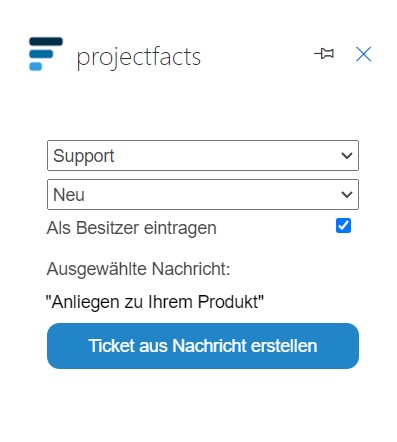
With a single click on “Create ticket from message”, a ticket is automatically created from the selected email. The ticket receives an ID and can be processed further in projectfacts.
Tracking ticket status in Outlook
With the projectfacts ticket add-in, you can not only create new tickets but also track the status of tickets in Outlook. To do this, simply select an email that you have already converted into a ticket.
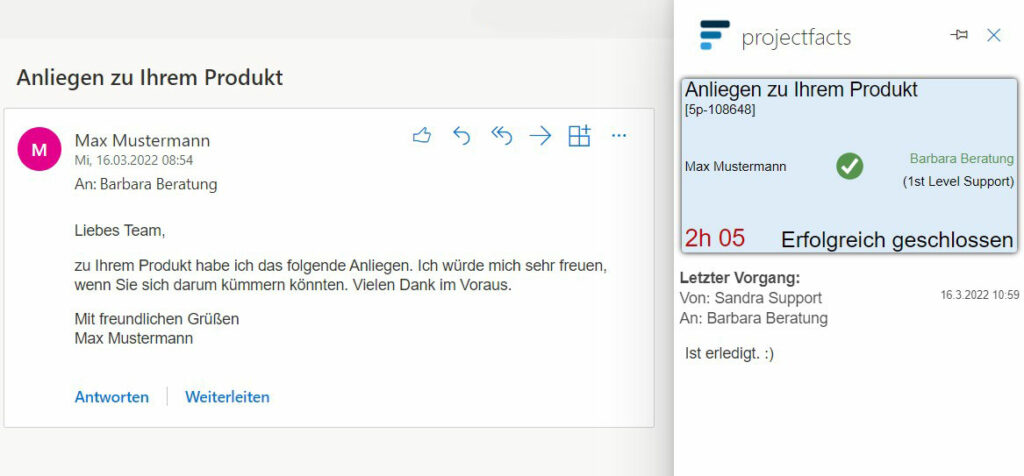
On the workspace, you will now see a ticket preview card, just as you are familiar with from projectfacts. The card shows you all the important information at a glance.
- The title of the email and the ID assigned to the email in projectfacts.
- The team member currently working on the ticket (Barbara Beratung).
- The person responsible for the ticket, if applicable.
- The channel in which the ticket is currently located (1st Level Support).
- The time elapsed since the ticket was received (2h 05).
- The current status of the ticket (Successfully closed).
Below the preview card, you can also see the most recent transaction within the ticket including a timestamp. With this information, you can keep track of your tickets in Outlook at all times.
Setting up the Outlook add-in
Current notice
The Outlook add-in is currently being certified by Microsoft before it is released for use. This process may still take some time. You will be informed here as soon as certification is complete.
For the Outlook add-in, you need a valid projectfacts license, a minimum version that can be found in the add-in description, a Microsoft Exchange account, and an Office 365 license. In individual cases, additional requirements may also apply. If in doubt, please feel free to contact our consulting team. We are happy to help.
Access the add-ins via Microsoft Outlook. In the desktop client, you will find a button for this in the ribbon. Use the search function to enter “projectfacts”, and the projectfacts add-in for Outlook will appear in the overview. Click on it and then on “Add”.
You will now find the projectfacts add-in in the Outlook ribbon. Clicking on it takes you to the setup dialog, where you will be asked for your projectfacts credentials, among other things. Please feel free to contact our support team for further assistance with the setup. After confirmation, the add-in is ready to use.
Further questions about the Outlook add-in?
Are you interested in our add-in, do you have questions about it, or do you need help with the setup?
Then please contact us — we are happy to help.
If you are not yet using projectfacts but would like to try it out, sign up for a free, no-obligation trial version.