
Resetting VAT in projectfacts
In 2020, VAT rates in Germany were temporarily reduced. In this article you will learn how to carry out the adjustment.
The VAT reduction of 2020
From 01.07. to 31.12.2020, VAT rates in Germany were temporarily adjusted for a limited period:
- Standard rate: From 19 % to 16 %
- Reduced rate: From 7 % to 5 %
In the course of this, a VAT correction mode was implemented in projectfacts. It automatically adjusts the tax rates in quotes, orders and invoices, provided the date of service provision falls within the above-mentioned period.
This correction mode will be deactivated with the next regular update (expected end of September).
For you this means:
You have made manual changes to the VAT rates?
Then please follow the instructions below to adjust the VAT rates.
You have NOT made any manual changes to the VAT rates?
Then you don’t need to do anything.
Procedure for manually changed VAT rates
1. Adjusting VAT rates on items
Start in the configuration under “Finances” and select the menu item “Items”. Here you will find a complete overview of all items created in projectfacts.
Typically, your items are grouped under certain main items. You first need to expand these main items by clicking the arrow to the left of them. The easiest way to do this is to start from the bottom.
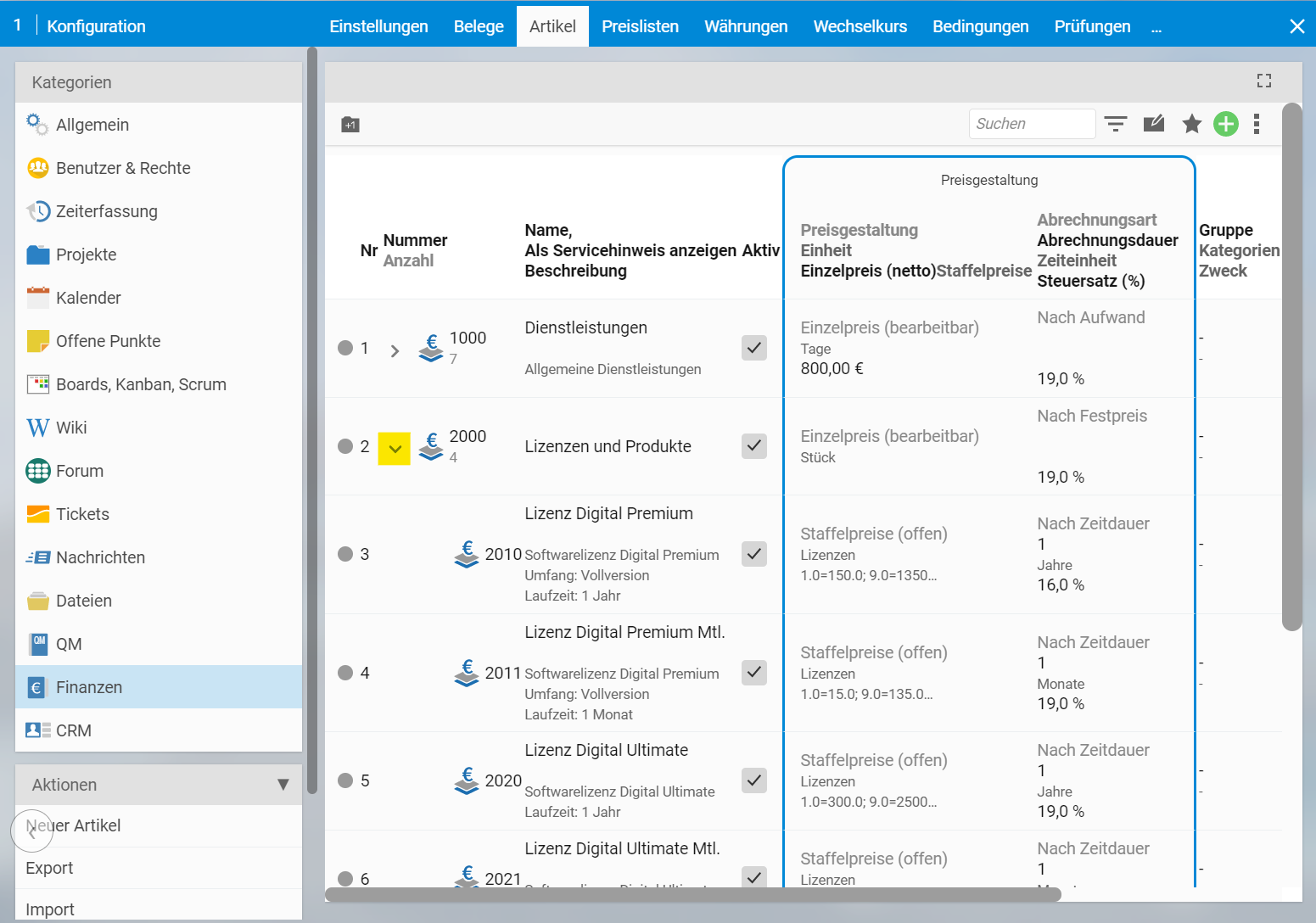
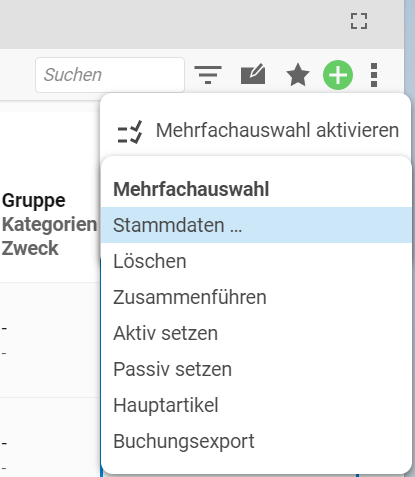
Once all relevant main items are expanded, activate the multiple selection in the context menu (three dots top right).
Select “Master data …” here. You can now select all items for which the VAT rate should be adjusted. (If you want to select all items, a single click on the checkbox in the top right of the list header is sufficient.)
Please note: If you only mark the main item, the items grouped beneath it will NOT automatically be selected as well. If you want to also mark all subordinate items via the multiple selection, you must first expand the main item.
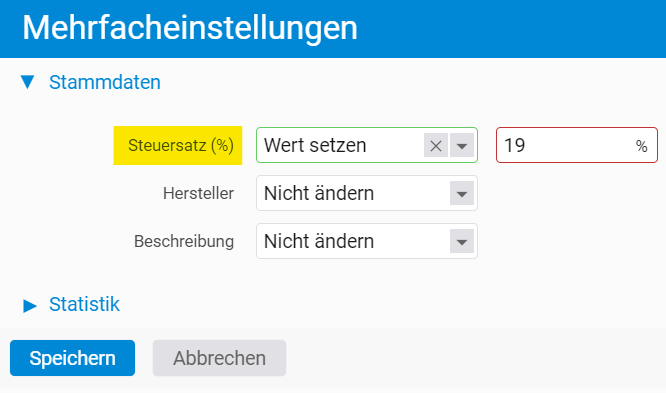
Confirm the selection with “Next”. In the following dialog, change the entry under “Tax rate (%)” to “Set value”. An input field will then appear to the right of it. Here you can enter the new tax rate, i.e. 19 % for the standard rate or 7 % for the reduced rate. Then click “Save”. The new VAT rate will now be stored for all selected items.
2. Applying VAT rates to orders
In the second step, the newly set VAT rates must be applied to the orders. To do this, switch to the “Price lists” tab in the menu bar. Activate the multiple selection again and select the item “Reset VAT in orders”.
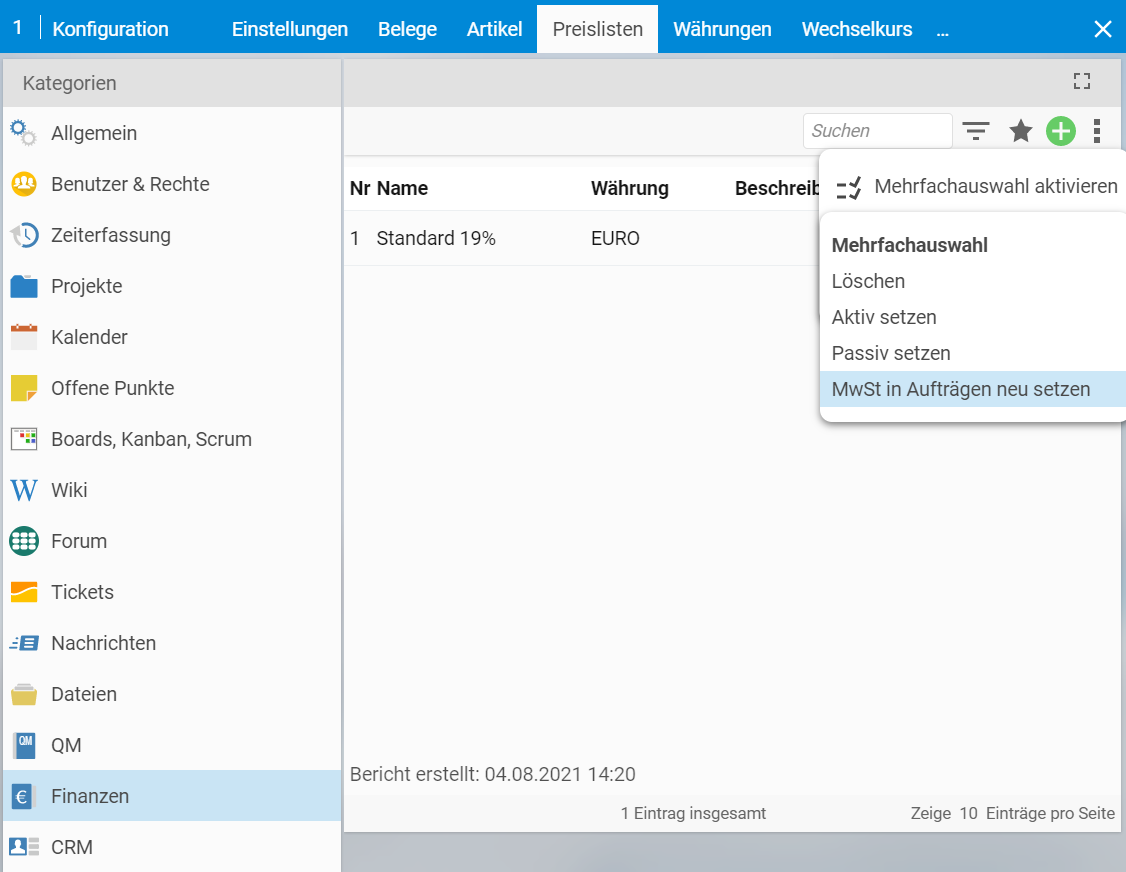
Select all existing price lists and then click “Execute”. The system will now automatically change the VAT rates in your orders. The number of changed documents will be shown to you as an info box in the lower left corner.
Questions or comments?
If you have any questions about the adjustment, please contact our consulting team. We will support you with adjusting the VAT rates and any further questions about projectfacts.