
Setting Up a Holiday Calendar
We show you how to set up public holidays in your projectfacts calendar and how to extend your existing calendar.
Check the Existing Holiday Calendar
The holiday calendar stored in the system must always extend at least two years into the future. If you need to extend your holiday calendar, the system will notify you automatically. In this case you will receive a message via the status bar.
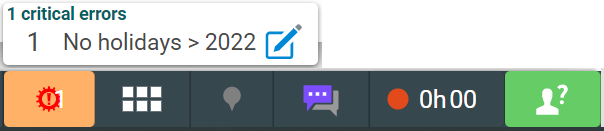
With the following guide and the Excel file provided for download, you can update the public holidays through to 2030. We are also happy to help you — simply contact our support team.
Import a New Holiday Calendar
Download the list of all public holidays in Germany from 2023 to 2030 here. In the next step you can upload this to your projectfacts system. First, however, you will need to adapt the data to your federal state and the public holiday regulations in your company.
Download holiday calendar through to 2030
The Excel file lists all public holidays. Nationwide public holidays are highlighted in green, regional public holidays in grey. Follow these steps to adapt the calendar for your company.
Delete all regional public holidays from the list that do not apply to your location. It is best to use the “Delete cells” option for this. This is available in the menu bar or via right-click.
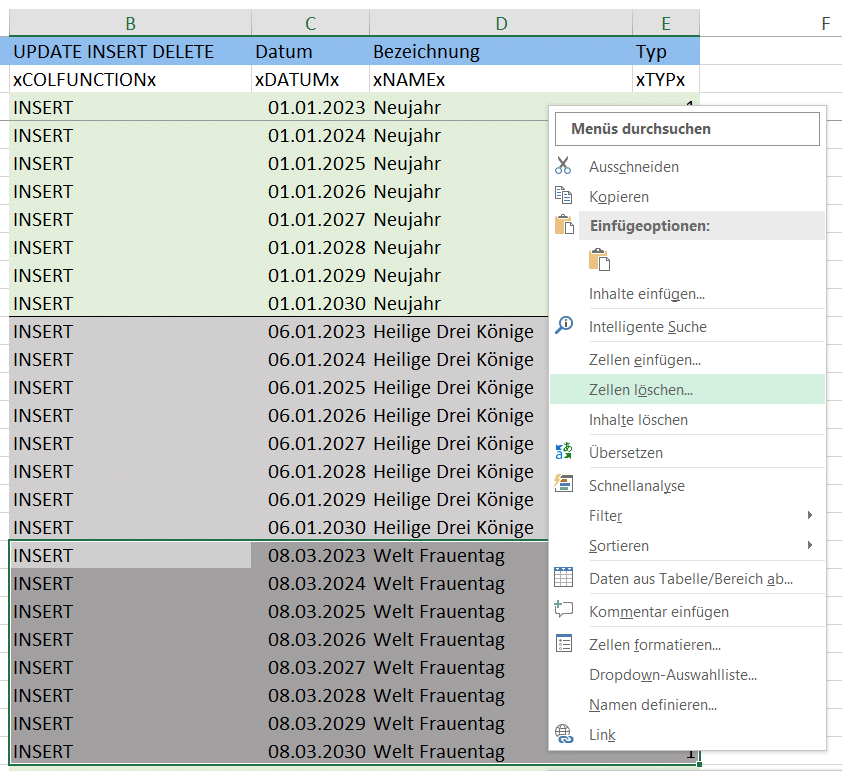
Delete all public holidays for years that are already set up in projectfacts. Is your current holiday calendar valid until 2024? Then delete the two rows for each public holiday for the years 2023 and 2024, so that there are no overlaps. You can check how far your current holiday calendar extends in the configuration. There you will find the “Holidays” menu item under the “Calendar” category. A list will open showing all stored holiday calendars. In the “Until” column you can see how long your calendar is currently valid.
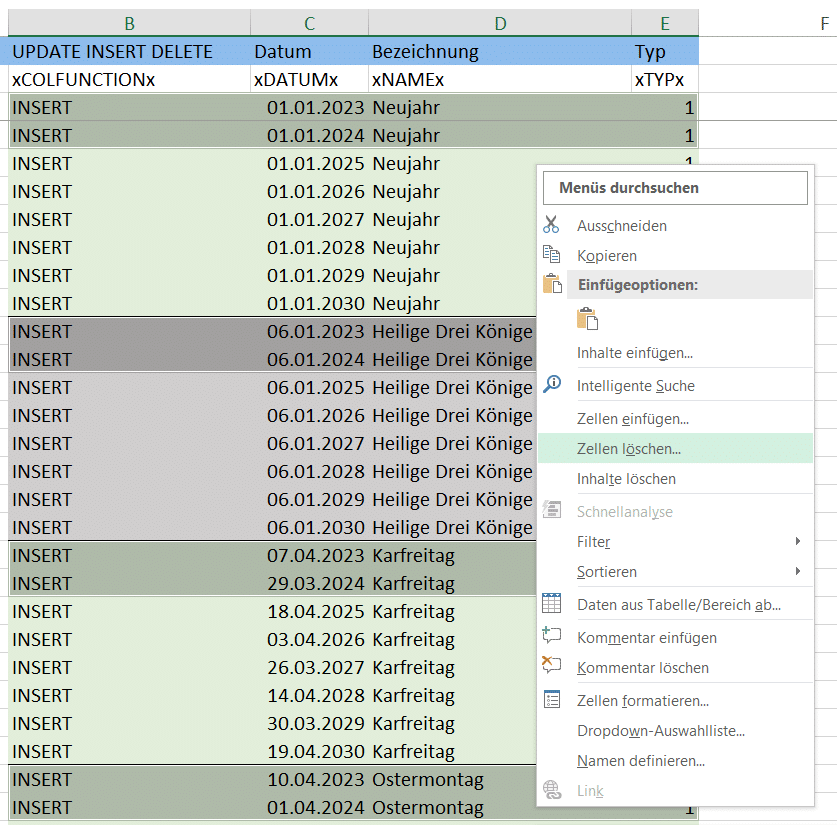
Christmas Eve and New Year’s Eve are handled differently by different companies. In the prepared list they are entered as half public holidays (see the Type column). Half public holidays are marked as “Type 0”, full public holidays as “Type 1”. Depending on how these two days are handled in your company, you can leave the list entries as they are (half public holiday), delete them (not a public holiday), or change the type from 0 to 1 (full public holiday).
You have now successfully prepared the holiday list. To import the new public holidays, go to the configuration and select the “Calendar” category. Open the “Holidays” menu item and click on the desired calendar, then on the context menu (three dots at the top right). Select the “Import” option and upload the prepared Excel file in the following dialogue.
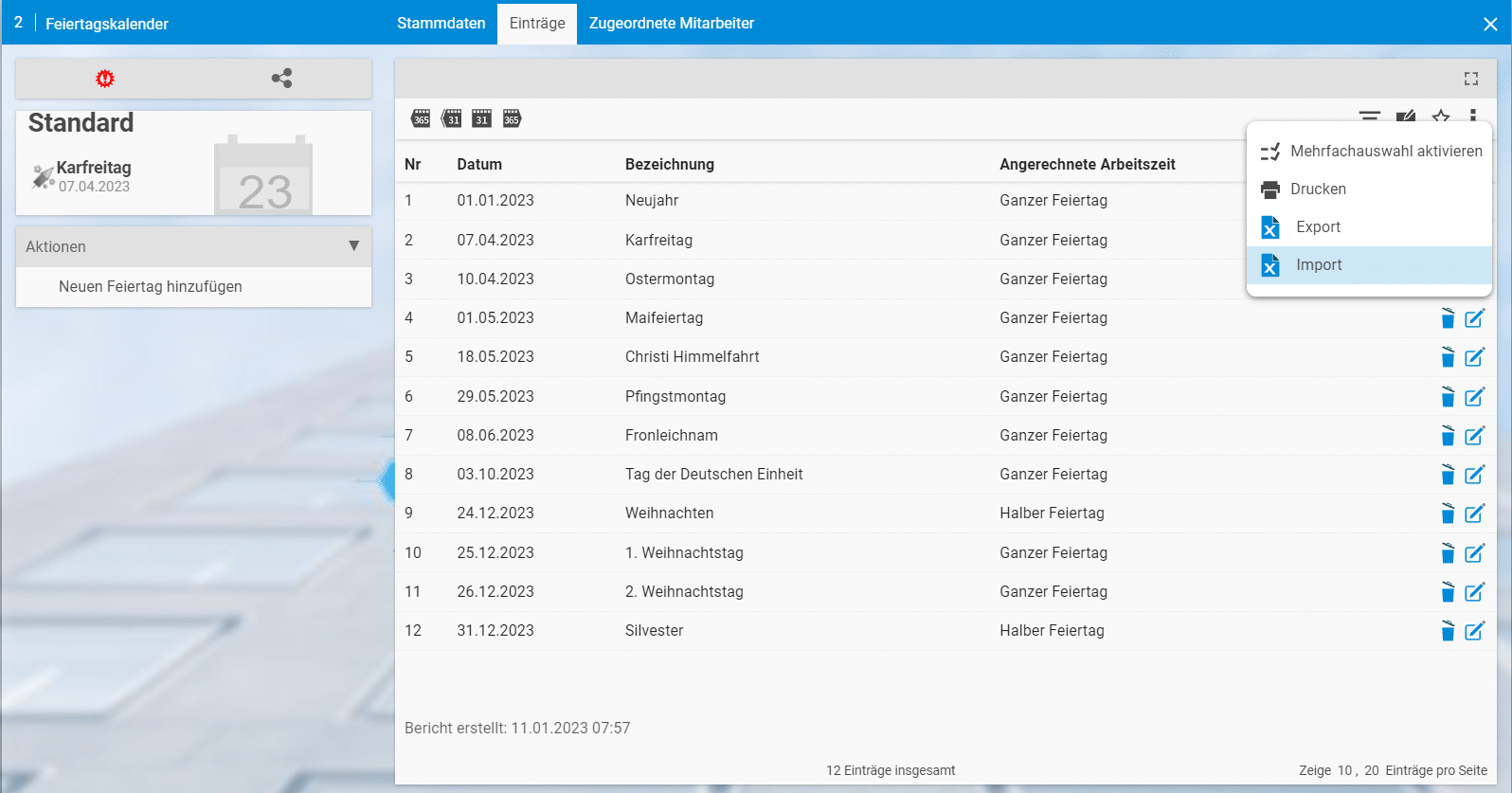
The upload process may take some time. Once the data has been successfully updated, you will receive a summary of the imported data.
Note: We do not accept any liability for the accuracy of the data or any errors that may occur in the system. If you are unsure, please contact our support team.