
Recording and Posting Special Working Hours
With projectfacts, record and post any type of working time in a completely individual way (e.g. impediments to duty, travel times, and much more).
With projectfacts version 6.8, you enjoy a new level of flexibility for your time recording. Record and post any type of working time in a completely individual way (e.g. impediments to duty, travel times, and much more).
Handling travel times differently using driver and passenger time as an example
Sometimes companies wish to handle special forms of travel time differently. Let us imagine the following example: Two employees are travelling together by car on a business trip. One employee is driving, the other is a passenger. With the new projectfacts version, you have the option of creating different time categories for both employees.
You can configure the corresponding rules for attendance and absence times in the settings under “Time Recording”. For example, you can specify whether only the driver’s time (driving time) or also that of the passenger (passenger time) should count towards the overtime account.
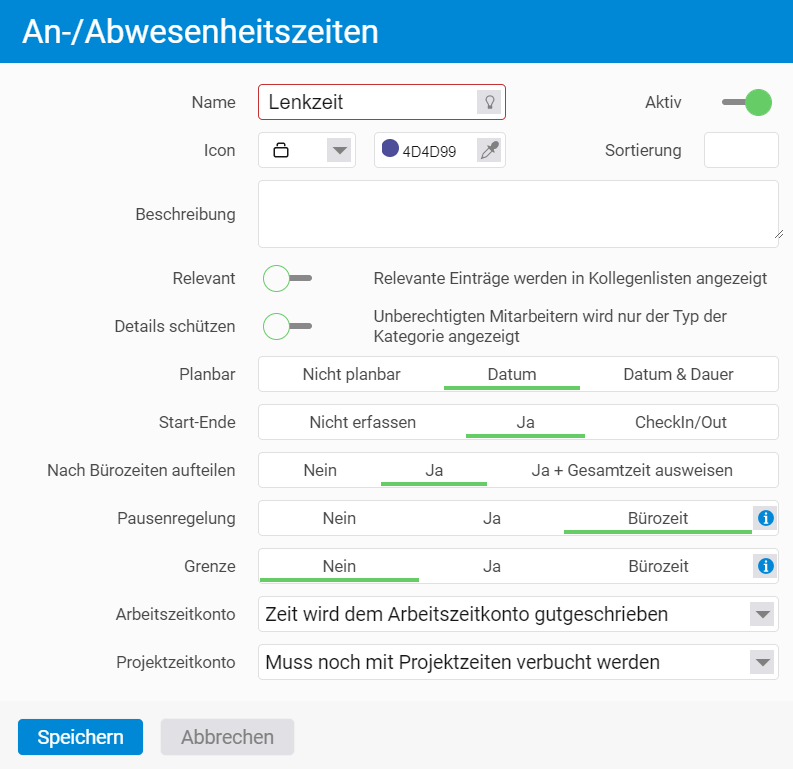
If both employees also have a defined set of office hours (e.g. from 8:00 to 16:30), you can differentiate here as well. The option “Split by office hours” allows you to specify whether time outside of office hours is credited to the working time account or not.
The latter option is particularly relevant for Austrian companies. The recording of travel times and impediments to duty in Austria is governed by the fictitious normal working hours. Read on to find out exactly how you can handle this in projectfacts.
Impediments to duty and fictitious normal working hours under Austrian regulations
In Austria, the following agreements are required as a minimum for a valid flexitime model:
Flexitime period
Averaging period (e.g. week or month): What period does the contractually agreed target working time refer to?
Flexitime frame
The span between the earliest possible start of work and the latest possible end of work in a day. Working hours outside this frame count as overtime.
Fictitious normal working hours
The usual standard working hours per day, often also referred to as office hours (including breaks).
Transferable time credits or debits
Surplus or deficit working hours that can be carried over to the next period at the end of the flexitime period.
In Austria, impediments to duty for an employee (e.g. due to doctor’s appointments, weddings, or funerals) are a special case for time recording. Recording and remuneration depend on whether the underlying appointment falls within or outside the fictitious normal working hours.
If the appointment takes place entirely outside the fictitious normal working hours, it is treated as a private matter and attributed to the employee’s leisure time.
If the appointment falls entirely within the fictitious normal working hours, the entire duration is counted as working time and must therefore be posted to the flexitime account.
With projectfacts you can now also map any combination of both variants. The following example explains exactly how:
Kira Kundenberaterin attends a dental appointment during the week. The appointment runs from 7:00 to 9:00. Her core working hours have been contractually set for the period from 8:00 to 16:30. When she posts the appointment in projectfacts, the chargeable working time is determined by the overlap between the appointment duration and the fictitious normal working hours. The time from 7:00 to 8:00 therefore counts as leisure time, while the time from 8:00 to 9:00 is credited to her flexitime account.
How do I define fictitious normal working hours (office hours) for my employees?
In the settings, under “Time Recording”, you have the option of storing office hours. There you can enter individual times for each day of the week:
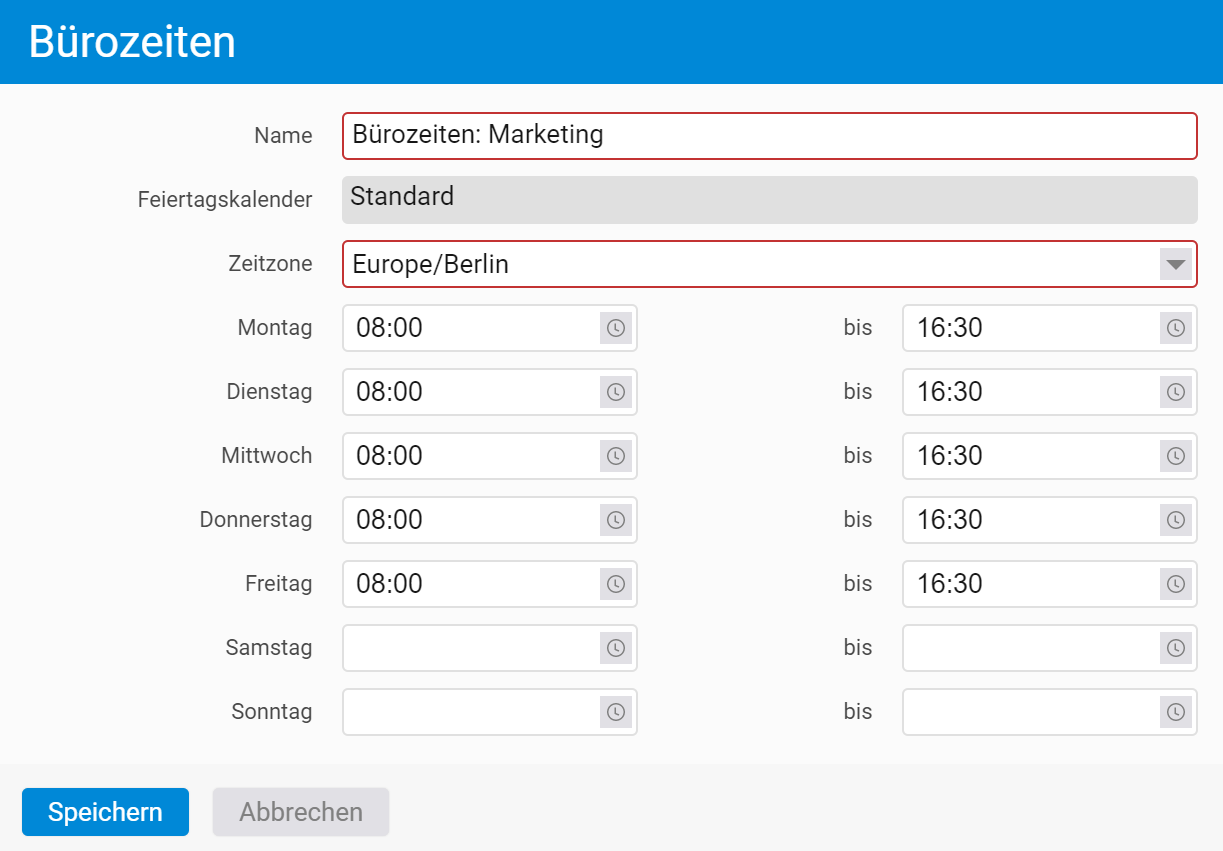
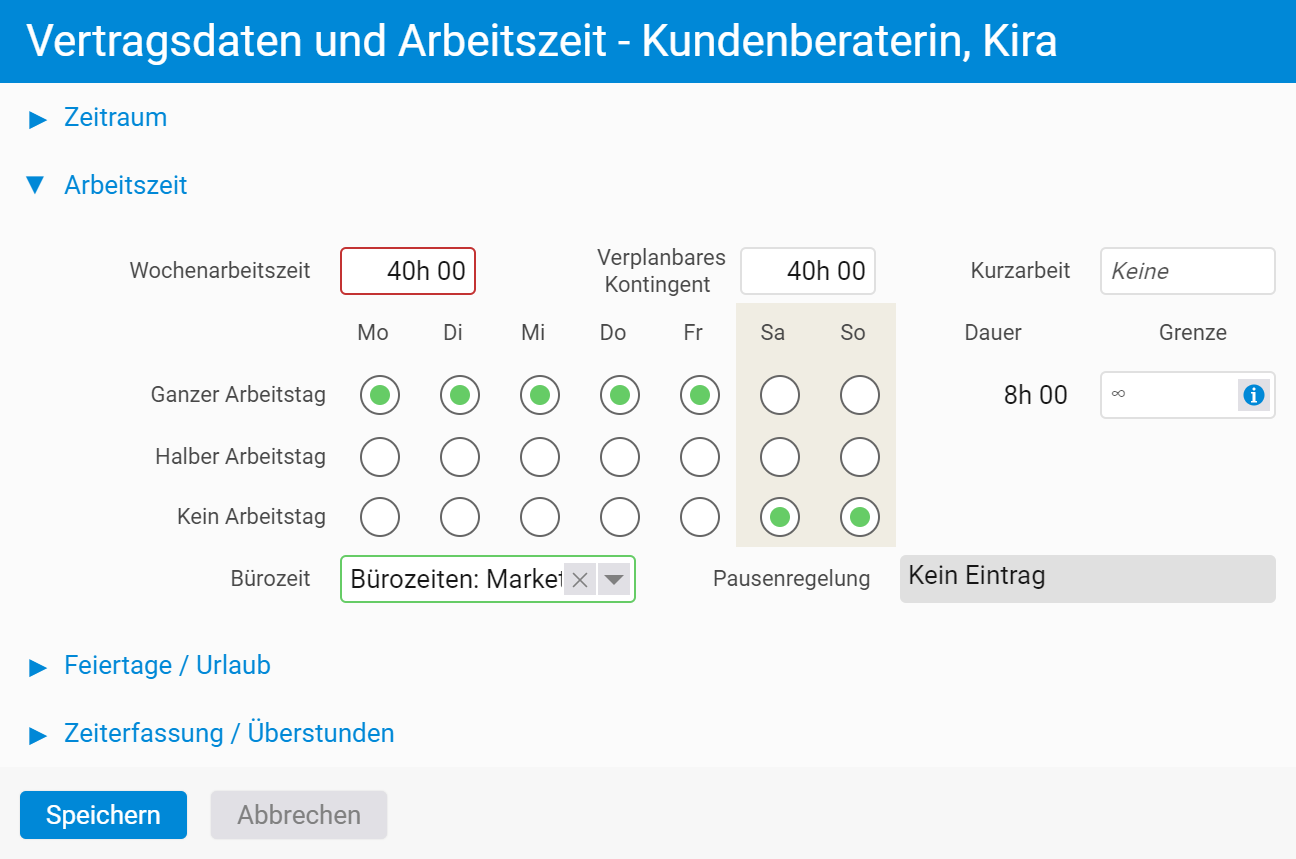
You can then assign the office hours you have just defined to your employees. To do so, switch to the “Users & Rights” section within the settings. In our example we select “Kira Kundenberaterin” and can now apply the new office hours under the menu item “HR” > “Contract data and working hours”.
How do I create special time categories (e.g. for doctor’s appointments) in projectfacts?
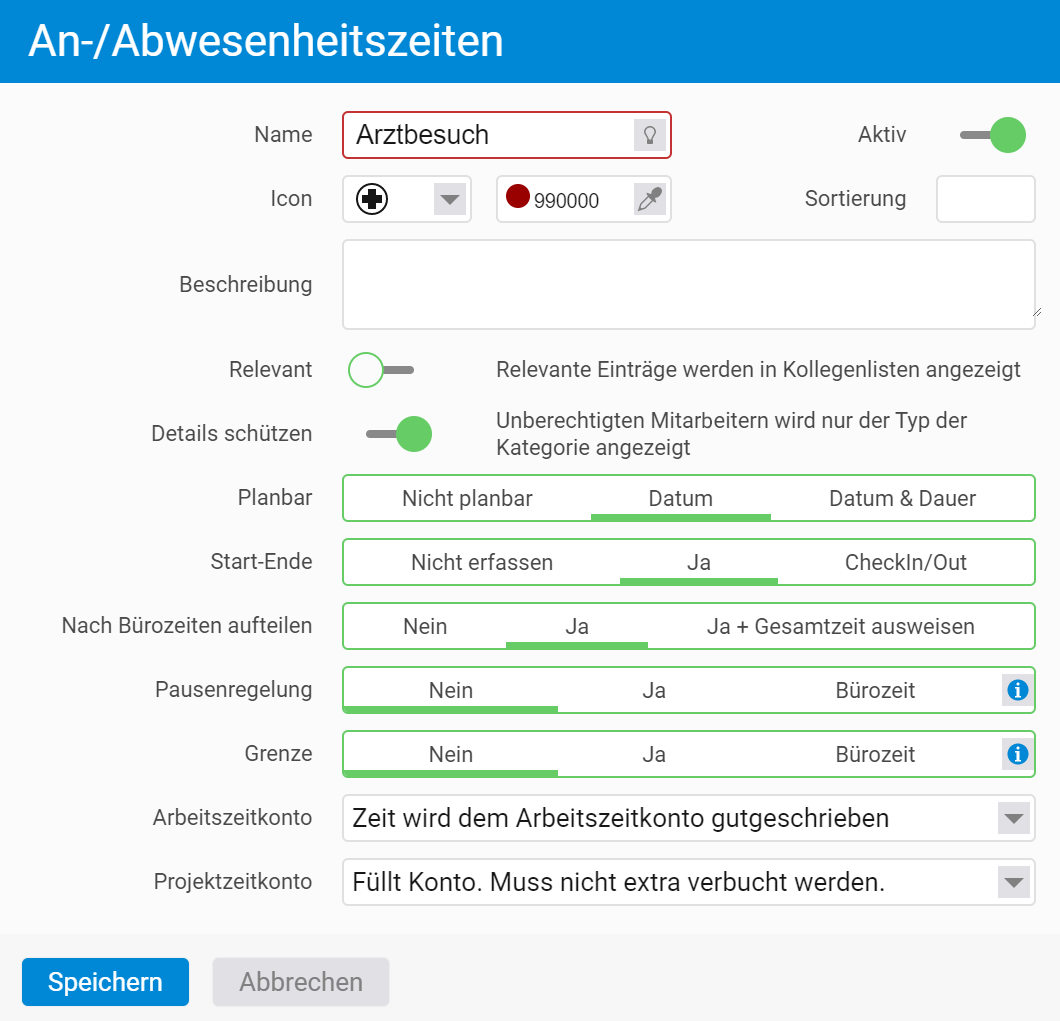
For posting your employees’ time, you can now create a new time category. To do so, switch to the “Attendance/Absence Categories” tab. Here you can define a new category, e.g. for doctor’s appointments.
Select “Yes” for the option “Start-End”. You then have the option of specifying whether the time category should be split by office hours. Since this is an impediment to duty and not regular working time, you also select “Yes” here. The portion of the time category that falls within office hours is then credited to the working time account. Additionally, there is the option of also outputting the total time.
How can my employees use the new time category?
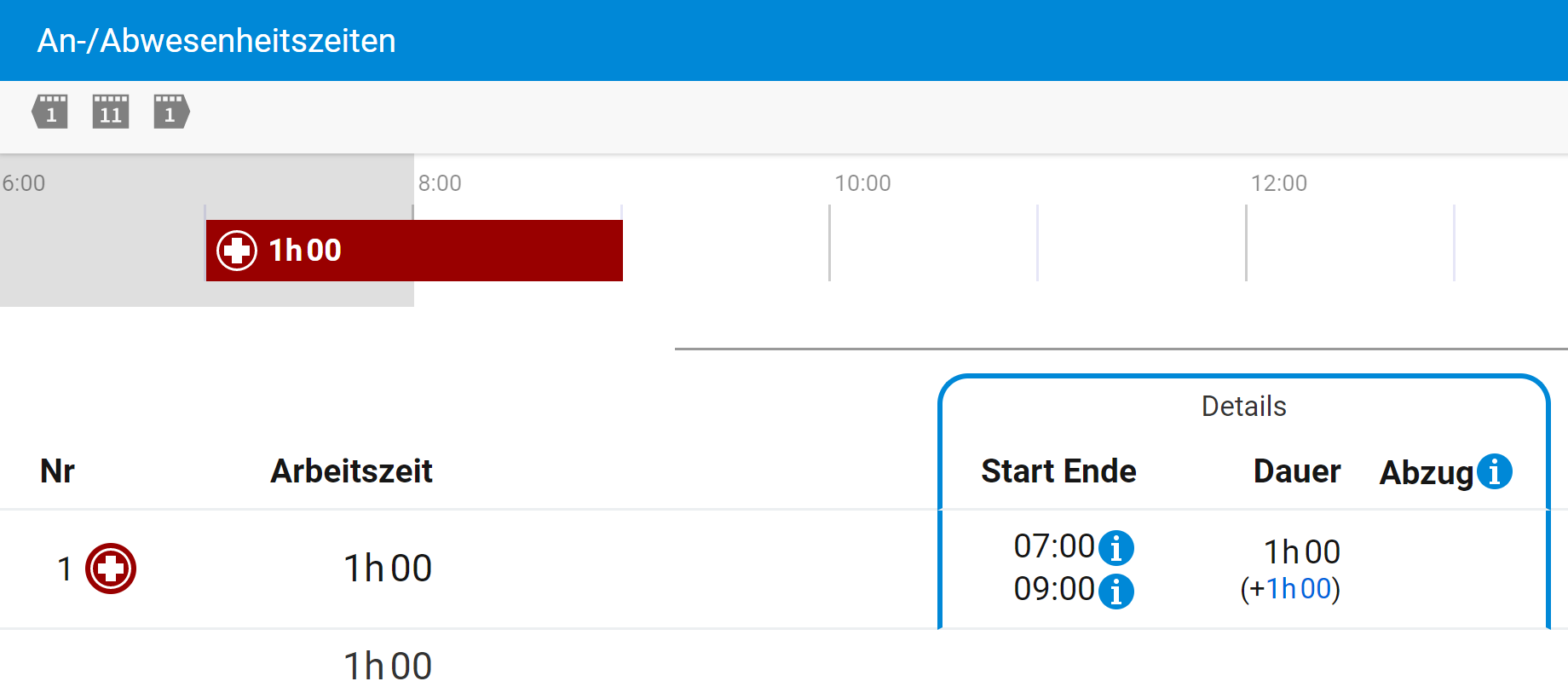
Your employees can now enter doctor’s appointments using the new time category under “My Working Day”. The graphical bar display at the top shows that only half of the appointment falls within the pre-defined office hours (i.e. the fictitious normal working hours). The other half falls within the employee’s free time (grey area).
As a result, the working time in the list view below is shown as only one hour. This time is credited to the employee’s working time account.
With projectfacts you will find the right solution for every type of working time. If you have any questions or further suggestions, please feel free to contact us directly.