
Tracking Times and Costs for Sales Opportunities
Track times and costs for sales opportunities in one software. This makes your sales even more efficient.
Why track times and costs in sales?
Especially in B2B business, acquiring new customers is often time-consuming and expensive. All the more important, therefore, to record the time invested and the costs incurred in connection with a sales opportunity. Many companies, however, do not document their employees’ working hours or only do so in billing-relevant areas such as support or consulting.
In doing so, important information is lost that could make sales as efficient as possible. Tracking times and costs for sales opportunities brings three key advantages:
- Sales managers gain a complete overview of the scope of sales activities per customer and employee
- Sales activities can be better planned, prioritised and traced.
- The contribution margin of customer projects is calculated precisely, because all costs incurred during the sales phase are also taken into account.
With projectfacts 6.9 you can benefit from these advantages too. Below we show you how you can use time and cost tracking for sales opportunities.
Activating the feature in configuration
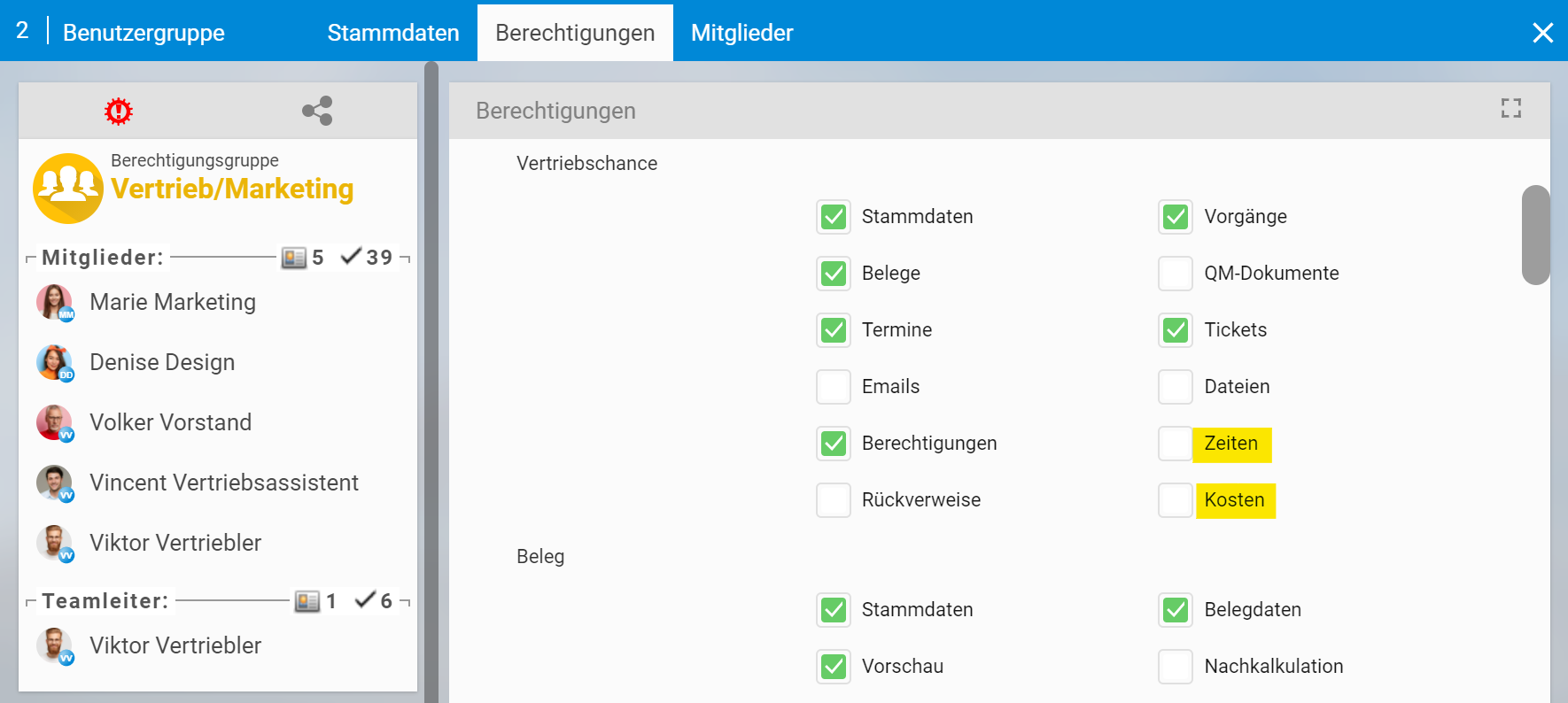
In the configuration, under “Users & Rights”, you have the option to set the new permissions individually. In the “CRM” section, you can also specify the project to which times for a sales opportunity are booked by default. A default description text for time booking can also be set up.
Tracking times for a sales opportunity
Open the “Activities” tab in any sales opportunity and you will find the “Times” item there. Clicking on it takes you to an overview list of all booked times assigned to the sales opportunity.
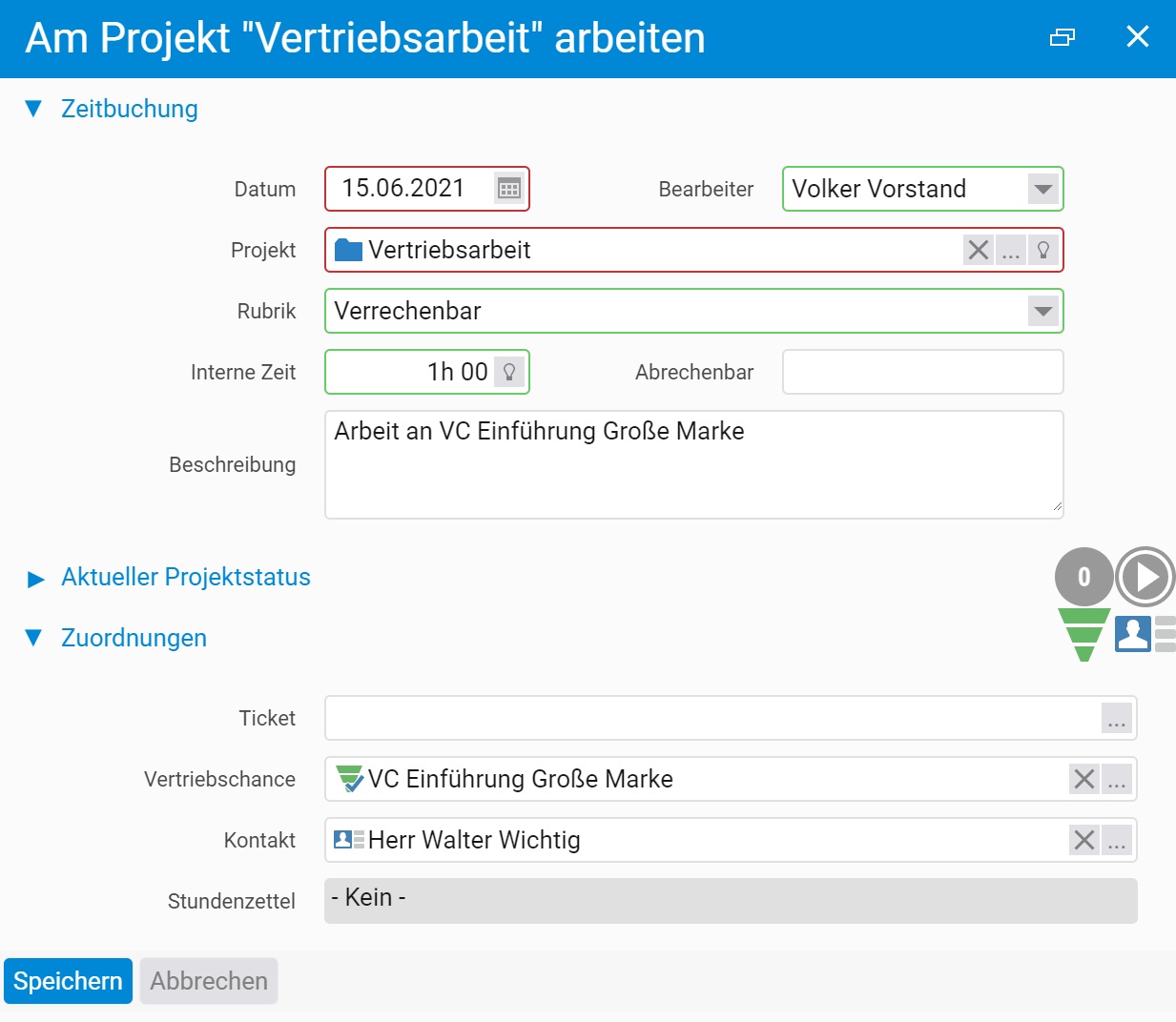
Click the plus icon at the top right to book a new time. A dialog opens in which your settings from the configuration are automatically applied, i.e. the default project for time booking and the default description.
On the right-hand side, the assigned sales opportunity and the contact are shown symbolically. Move the mouse over them to see all the information as a preview. In addition, the sales opportunity is listed under Assignments.
Tracking costs for a sales opportunity
Analogous to times, you can now also track costs for your sales opportunities. To do this, switch to the “Costs” item under the “Activities” tab in the sales opportunity.
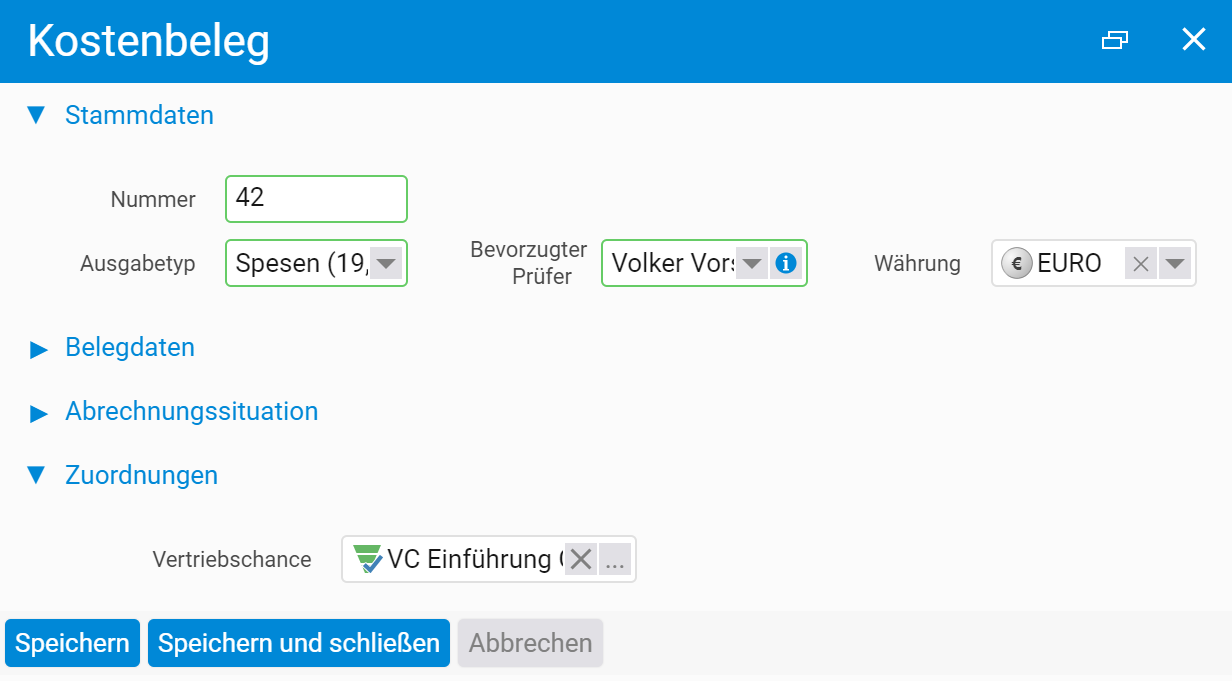
You will reach an overview list with all costs already recorded. Using the action box on the left, we add a new expense – in this case, expenses for Volker Vorstand. If you book costs directly from the sales opportunity, it is entered as an assignment by default.
Note: If you cannot see the “Costs” menu item even though you have activated the option in the configuration, you may be missing the permission to view or record costs. The required right can be activated in the configuration under “Projects”.
Viewing and changing times and costs
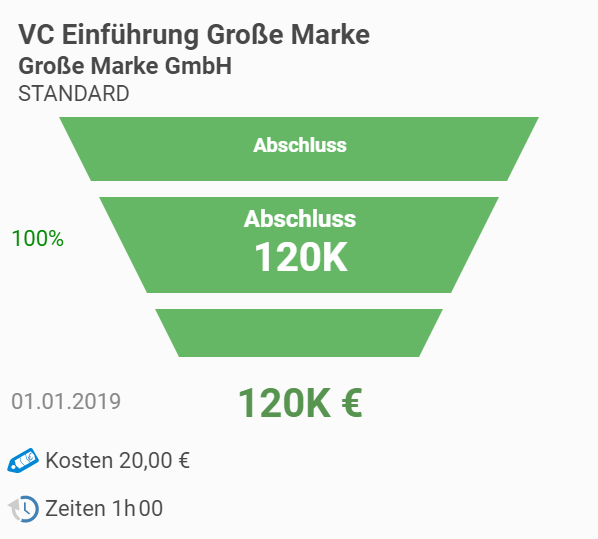
Both times and costs are displayed to you in the sales opportunity under “Recently edited items” and in the preview card for the sales opportunity.
You can either access the list of times or costs under the “Activities” tab, or jump directly to the time or cost element on the overview page by clicking on the corresponding link.
You can also filter by the desired sales opportunity in all other time or cost lists in projectfacts, giving you a direct overview of all assigned times and costs. If necessary, you can transfer these to a different sales opportunity via multi-selection under “Master data”.
Transferring times and costs to a project
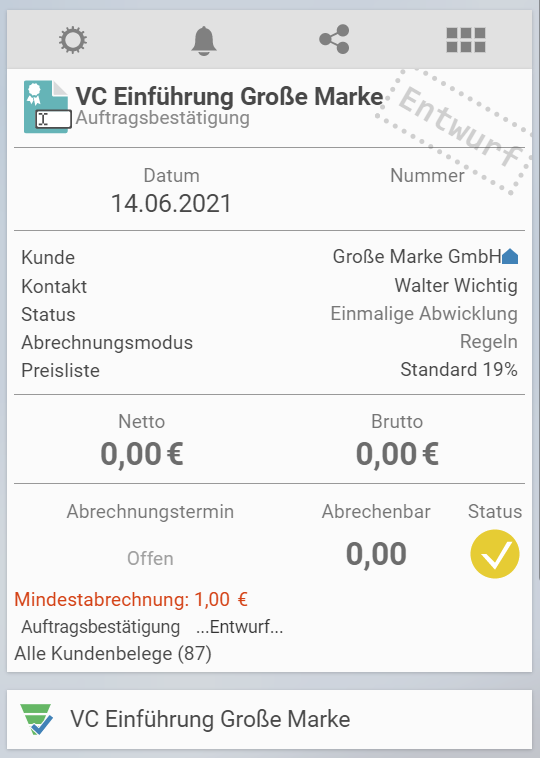
If a sales opportunity leads to an order, you can easily transfer the assigned times and costs to a corresponding customer project. To do this, first create an order confirmation from the sales opportunity (via the “New document” action).
After you have defined the framework data for the order in the following dialog, you will reach the detail manager for the order confirmation. The sales opportunity from which the order was created is shown to you as a link below the preview.
Click “Create project” in the action box and confirm with “Next” that the project is to be created as the main project. You are already familiar with the following dialog from creating projects. However, there is one new note:
Note: Times and costs are attached to the sales opportunity (VC Introduction Large Brand, 1h 00, 20.00 €)
Activate the checkbox “Transfer times and costs of the sales opportunity” and all times and costs summarised in the note that are assigned to the sales opportunity will be transferred to the new project.
Further questions or comments?
Do you have questions about how to track times and costs for sales opportunities? Our consulting team will be happy to help. If you would like to get to know projectfacts, request a free test account right away.