
The New User Interface "Genua"
Meet our new user interface "Genua". It offers more than just a fresh look. Above all, it is even faster, simpler, and more flexible.
Sails Set for a New Beginning
In sailing, a genua is a large foresail set in place of a jib. Its greater surface area provides strong forward drive even in light to moderate winds, which is why it is often used in regattas when maximum speed is paramount.
In the spirit of this powerful sail, we present you with our new user interface Genua. It is faster, more intuitive, and more flexible than ever before. We are proud to introduce a user interface that gives your company a noticeable boost.
Our goal was to bring even more clarity and efficiency to the system. Established features are retained, while new, well-thought-out elements create genuine added value. This means existing customers can continue their familiar workflows and at the same time benefit from modernised operating concepts — without a long adjustment period.
In the following, we show you the highlights you can look forward to with Genua.
Better Overview in Lists
New Selection and Detail Lists
Even today, the lists in projectfacts offer impressive flexibility: rows can be filtered extensively, columns can be shown or hidden as desired, and default settings as well as bookmarks can be customised individually.
To further improve clarity despite this wide range of options, we have consistently developed the list concept. From now on, you can easily switch between two display modes in every list in the system: the compact selection list and the more detailed detail list.
The selection list has been deliberately reduced to the essentials. It shows only the most important information and thus provides an optimal overview — ideal for mobile devices as well. In addition, the left sidebar is collapsed by default to make optimal use of the available space.
The detail list, on the other hand, provides you with additional columns. It is particularly suitable when you want to capture more comprehensive information about list entries at a glance or compare them with each other — for example, the order values of your customers.
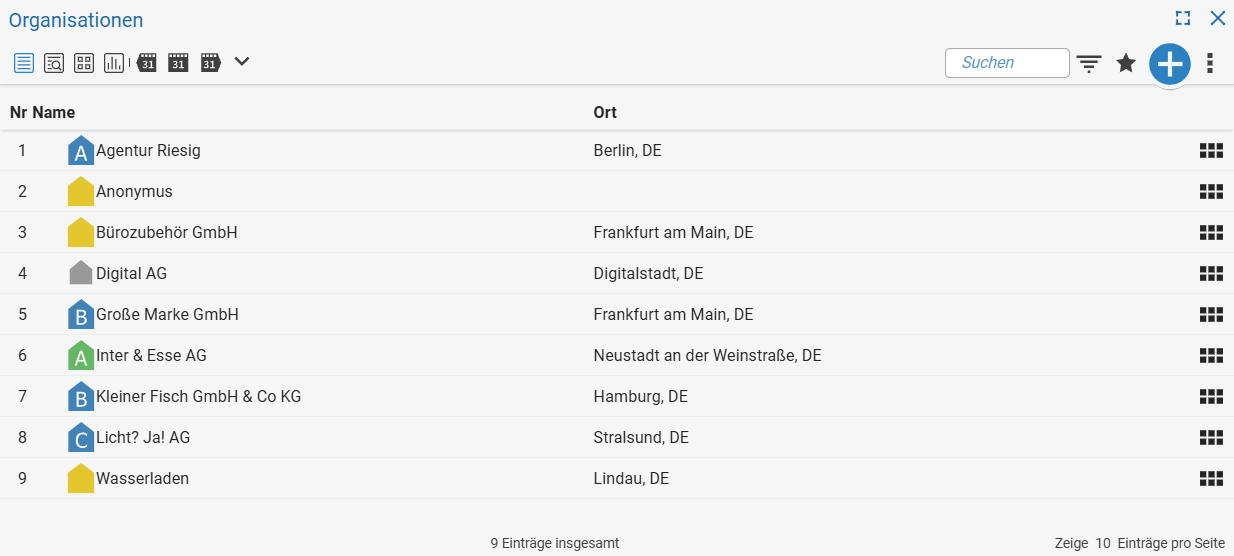 Selection list
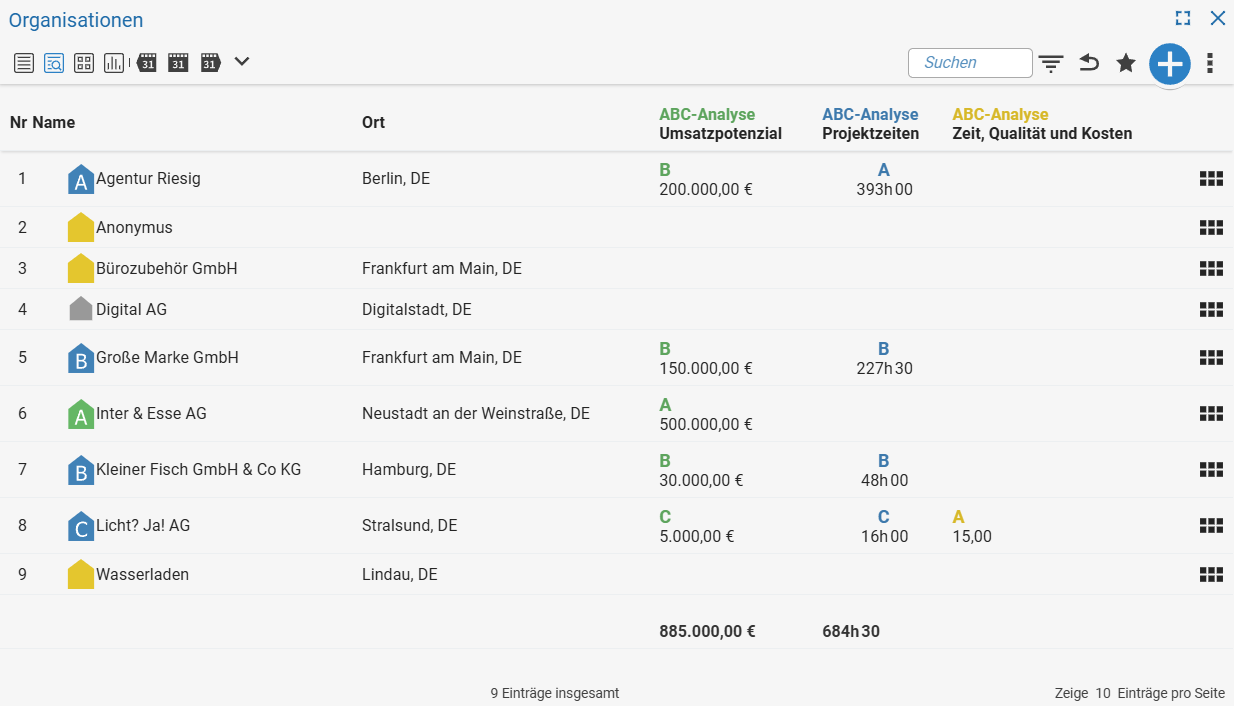 Detail list
Editing List Elements Directly
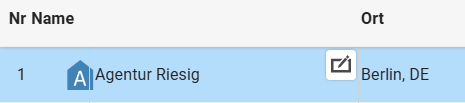
To save you time and unnecessary clicks, we have integrated a particularly convenient feature into the software: you can now edit list entries directly without first switching to the detail manager of the respective element.
To do this, a small pencil icon appears in the top right of each editable cell. Clicking on it makes the field immediately editable, so you can make your changes directly. Even faster is an additional keyboard shortcut: hold down the ALT key and click on the desired cell — editing mode is opened immediately, without going through the detail manager.
Of course, all permissions are maintained here too:
Only users with the appropriate rights can
view and edit elements.
Adding Columns and Grouping
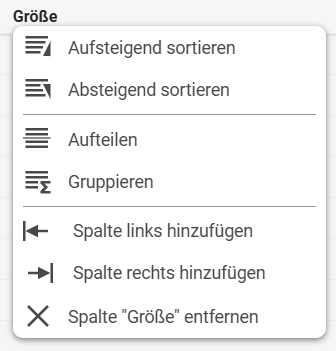
You are already familiar with easily adding and removing columns from our software. With the new Genua interface, this process becomes even more intuitive and faster: simply click on a column heading and decide whether you want to remove the column or insert new data to the left or right of the existing column. You select the desired data conveniently from a comprehensive list of predefined fields. You can also divide the list by the respective column to gain even more clarity.
New is the ability to group by certain values. Let us take the company size of your customers as an example. Suppose there are small customers with 1 to 19 employees, medium customers with 20 to 100 employees, and large customers with more than 100 employees. You can not only display this information row by row, but you can also group by it. In this case, the system places the corresponding information at the beginning of the list and shows you the number of companies in the respective group. In addition, all aggregatable data, such as revenue or booked project times, is summarised per group. This allows small statistical evaluations to be carried out directly within the system lists — quickly, clearly, and without any additional effort.
Streamlined Filter Options
For a better overview in the filter dialog, initially only the view area is open. Here you control the active columns as well as the settings for sorting, grouping, and splitting.
If you want to filter the rows, two convenient options are available: either expand one of the filter areas arranged below, which are thematically organised and provided with self-explanatory headings. Or use the integrated search field, in which you simply enter the name of the desired field — this allows you to find the appropriate filter quickly and precisely.
Filter settings you have already made or that have been set by the system as defaults remain visible at all times: even with filter areas collapsed, the active filters are displayed as a small preview on the right-hand edge of the respective area. This allows you to see at a glance which filters are currently active.
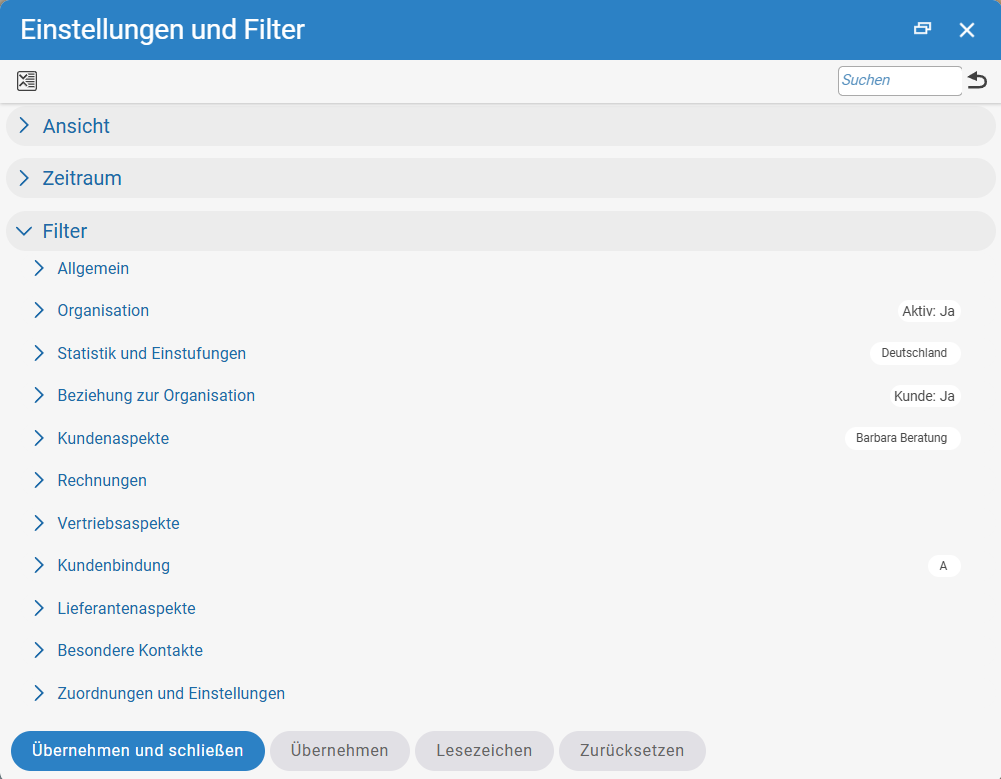
To completely reset the filter dialog to the default values, simply click on the arrow button in the top right corner. Both the view and all filter settings made will be reset. If you only want to expand or collapse all areas simultaneously, the toggle button at the top left is available for this purpose.
PS: Much of this also applies in detail managers, e.g. in the master data of organisations.
Improved Dialogs and Detail Managers
Smart Creation Dialogs
Many dialogs in the system have been revised to make operation even more user-friendly. They now follow a wizard principle:
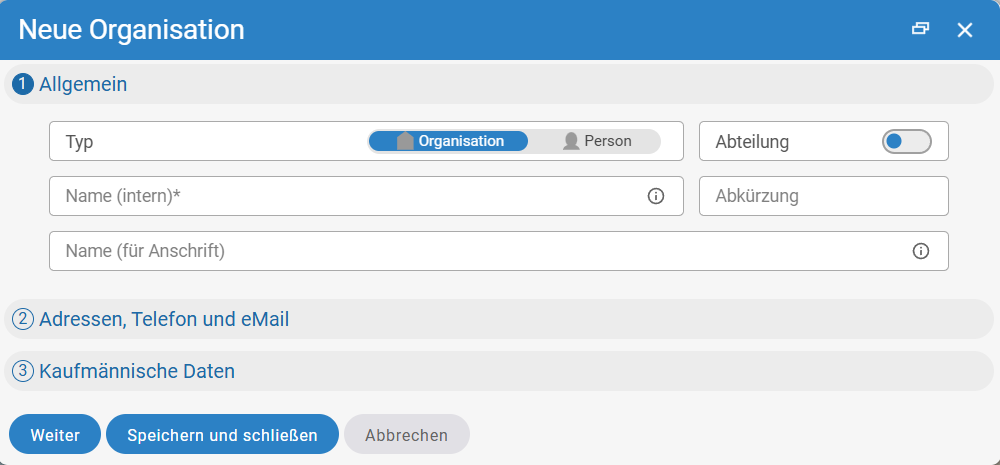
This means data is entered step by step. Instead of presenting all fields at once, the information is divided into individual, clearly arranged sections.
When creating a new organisation, for example, you are first asked for general information such as the name of the organisation. Opening the second section allows you to enter contact details such as email address and telephone number. Step three then follows with the commercial data of the company.
Multitasking with Detail Managers
Many of our customers are already familiar with the term detail manager — it is one of the central elements in projectfacts. Whenever you open a specific element in the software, a separate “window” appears that overlays the interface. Each detail manager has its own tabs, a left-hand area with summary information, and an action box for quick commands.
A core principle of projectfacts is that multiple detail managers can be open at the same time. These are stacked on top of each other: when you close a detail manager, you automatically return to the one underneath.
With Genua, we have made this form of navigation even more convenient. From now on, you can display the entire stack of open detail managers in a clear overview. To do so, simply click on the frame of a detail manager that is currently in the background. All open detail managers are then displayed side by side — similar to a dashboard.
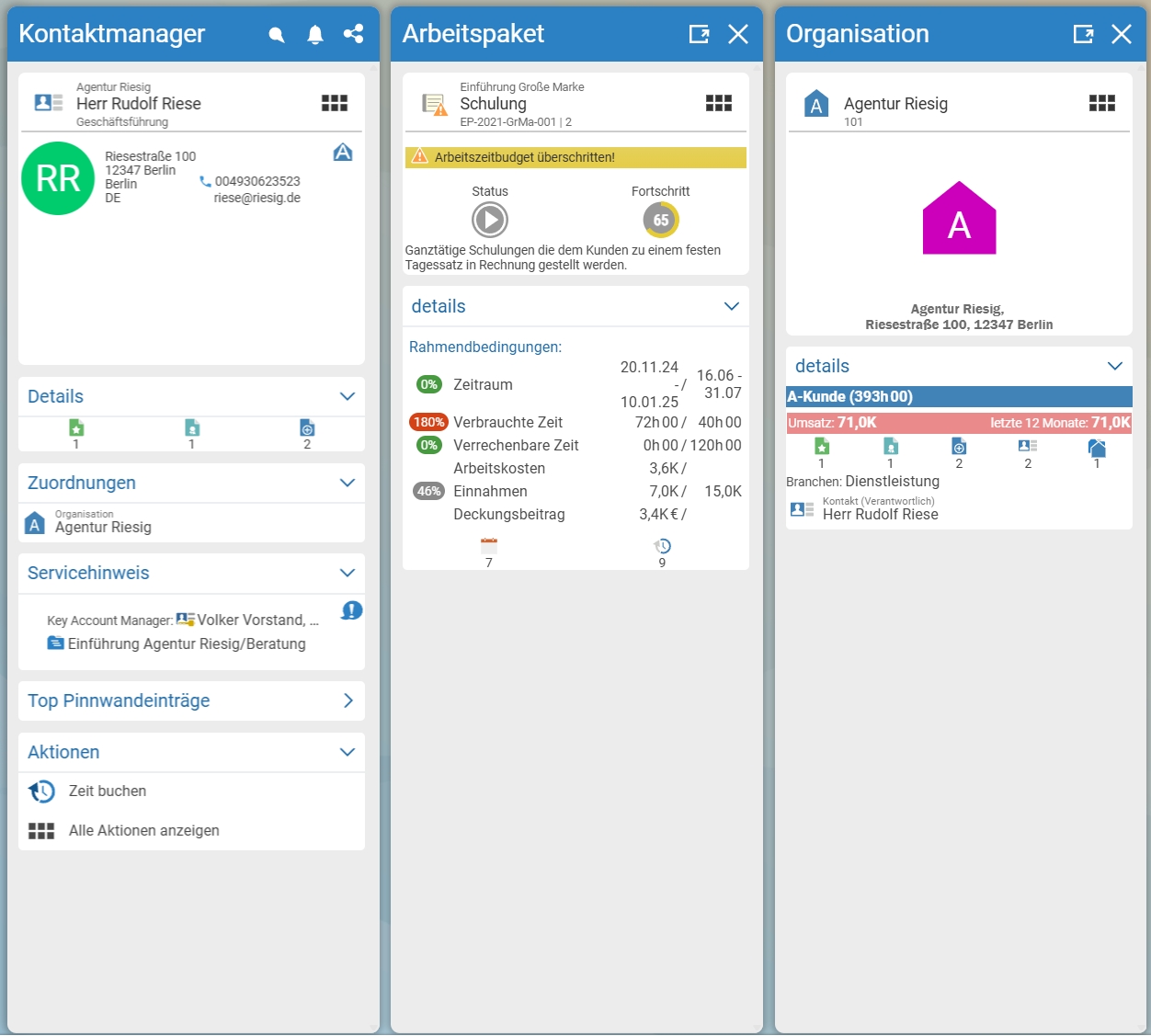
This keeps you informed at all times about which elements are currently open. You can close individual windows selectively or click to maximise the desired detail manager and bring it to the top of the stack. Our conclusion: a small new feature with a big impact that noticeably simplifies your multitasking in everyday work.
The New Project Detail Manager
We have given the detail manager for projects particular attention. It plays a central role within the software and has always been especially extensive — on the one hand due to the large number of tabs, and on the other due to the previous division into structure and detail tabs.
We have now broken down this distinction. The tabs are instead grouped thematically and accessible via dropdown menus. This allows you to quickly and directly navigate to the area you currently need.
A central element of the new navigation is the project tree, which now remains permanently visible on the left side — regardless of which tab you are currently on. Clicking on an element, e.g. a sub-project or a work package, activates it. The associated details, such as master data or general conditions, are displayed on the right-hand side.
You can therefore always see which element within the project structure you are currently working on, and you can conveniently switch between different elements. The right-hand side updates automatically, allowing you to quickly edit master data for multiple sub-projects or, for example, view booked project times per work package.
If needed, the project tree can be shown or hidden at any time to customise the workspace individually.
Getting to Know and Trying Out the New Interface
Playing in the Sandbox
For our customers, Genua will only be rolled out with the autumn release in September 2025. However, you already have the opportunity to test the new user interface in a sandbox environment in advance. We will deploy Genua on our test systems from 1 July 2025. Simply enter your email address on this page from July onwards
https://help.teamspace.de/sandbox/
and choose a template for your demo system. (Whether you choose teamspace office or enterprise does not matter, as both templates will have the Genua interface at this point in time and will be populated with demo data.)
Your access data will then be sent to you by email. You can of course also share these with other people. Since it is a sandbox, you can test, try out, and redesign as you please in this system. None of it will affect your production environment. The sandbox serves merely as a proverbial “sandpit” where you can get to know and experience the innovations of Genua in advance. You can create as many sandboxes as you like; they will be automatically deleted at the end of the current calendar week.
Genua on Your Personal Test System
If you use our standard hosting, we can install Genua on your test system in advance on request. This gives you the opportunity to try out the new user interface as it will later look in your production system. Simply contact our consulting team if you are interested.