
New User Experience with projectfacts 2022
For projectfacts 2022 we have fundamentally redesigned the menu and user guidance. Discover the advantages of the new menu and further improvements.
Improved User Experience
So that you can collaborate even more efficiently and smoothly, we have fundamentally redesigned the menu and user guidance. The new menu loads faster and floats above the interface. Companies can sort, structure and rename their menu items as they please. Tiles can now also be customised according to your preferences. This allows projectfacts to enable your company to create individual dashboards and optimise the menu structure for your processes.
New floating menu
Visual and performance advantages
As an all-in-one software, projectfacts thrives on connectivity — between company divisions, employees and departments. To convey this idea even more clearly in the software, we have fundamentally redesigned the menu. It now loads even faster and follows a modern operating concept.
Previously, you were accustomed in projectfacts to jumping directly into the module you clicked on in the menu bar. With the update, a new floating menu is introduced. When you click on a menu item, the new menu opens above the existing interface and the background becomes blurred.
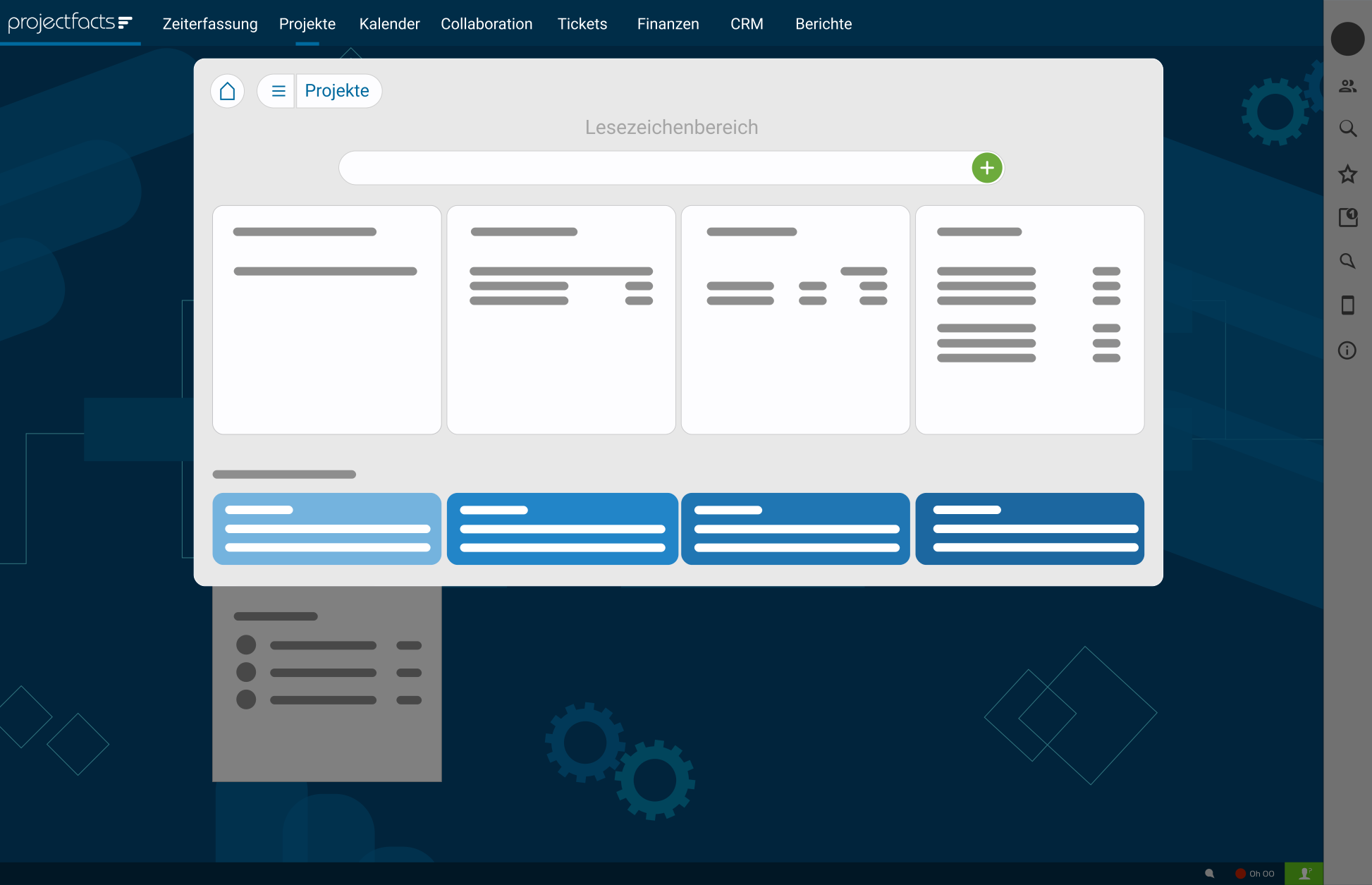
You can now navigate freely in the new menu without leaving the element or list you were working on. Only when you click on a new list or a new element does the interface switch to your selection. If you only need a quick piece of information from a tile or change your mind while navigating, you can jump back to your original screen at any time by closing the menu via the “x” or simply clicking beside it.
Apart from the fact that the menu now floats, it offers the same functions you are used to. You can still create and save bookmarks, use the search bar and navigate using the tiles.
In addition to the floating menu, you can also customise the second menu bar with the new version. Previously it served to quickly switch between tiles within a module. You can continue to use this function, but you can also hide the second menu bar completely to gain more workspace. A third option is to use the second menu bar as a kind of buffer for recently used elements. A new form of breadcrumb navigation helps you with this, which we introduce below.
Directory structures
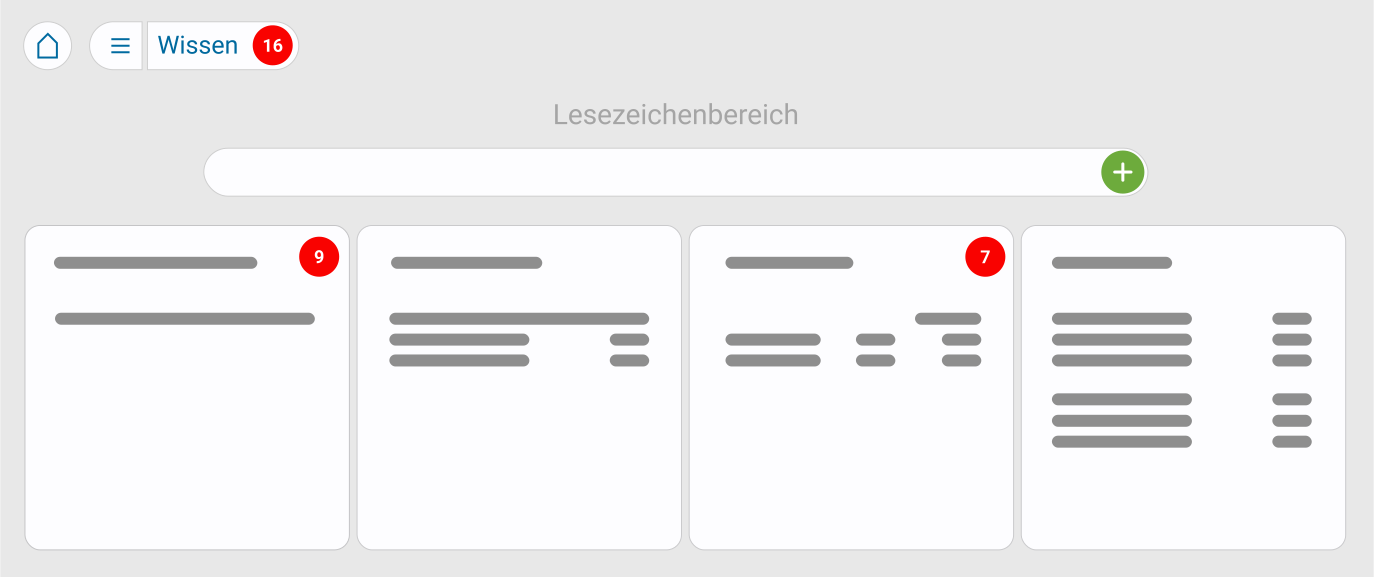
The new menu has an address bar — similar to your internet browser or Windows File Explorer. The address bar works like a breadcrumb navigation and shows you which directory level you are currently on.
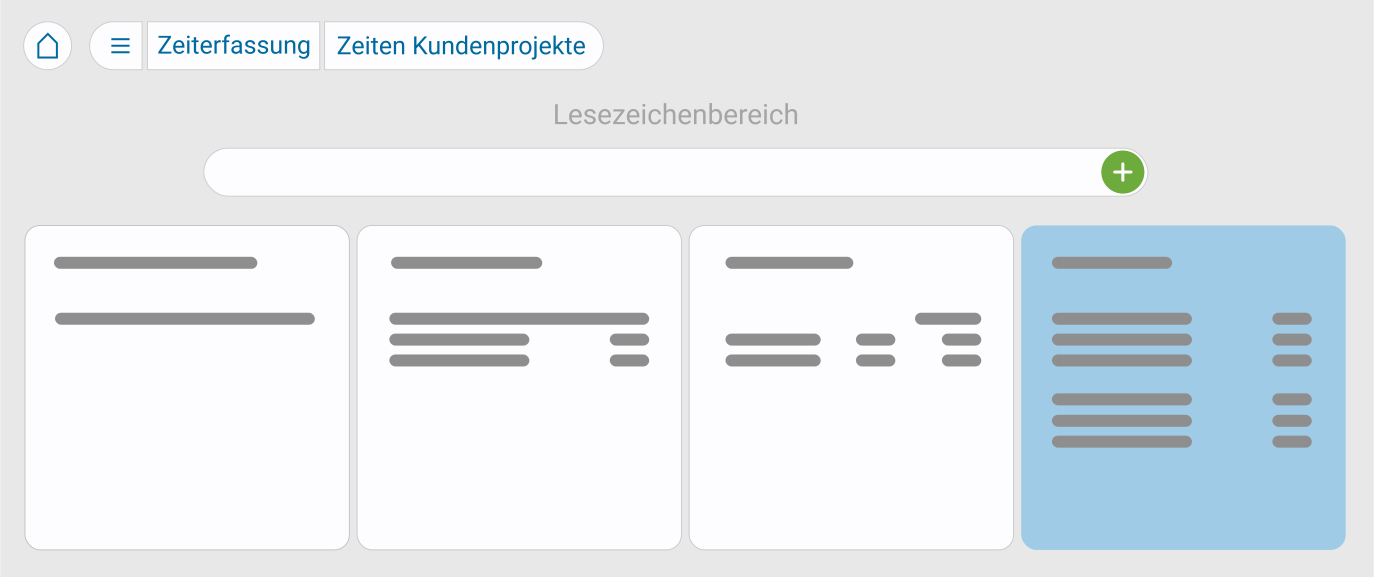
In earlier projectfacts versions there is only one main level on which the tiles are located. With the new version we enable you to create deeper menu structures. For example, you can use a tile as a collection folder for further tiles, elements or lists. You can find out exactly how this works further below in the section “Sorting and structuring menu items”.

Regardless of your directory structure, certain elements are always present in the address bar. On the far left you will find a house symbol. This takes you directly to your personal dashboard or home menu. Next to it is a burger symbol. It represents the top menu level in projectfacts. Click on it to get an overview of all the modules you currently have activated. Within the menu items you can already see a mini preview of which tiles or sub-menu items are contained therein.
To the right of the symbol for the main menu, the breadcrumb navigation follows. This lets you see at a glance which submenu you are currently in. Deeper folders are automatically appended to the right. If you want to jump back from there to a higher level, simply click on one of the directories to the left. This way you can always find your way back to the main menu via the “breadcrumbs”.
Recently used elements and direct comparisons
Often there are certain lists in projectfacts that you need particularly often for your own work. So that you don’t have to access them via the menu every time in such a case, we are introducing a special convenience function.
The menu automatically remembers which tile you last opened in a particular module and offers it to you as a quick selection. You can use this function in two different ways:
- Move the mouse over the menu bar and a popup with the name of the last tile used automatically appears beneath the menu item. With a single click you go directly there.
- If you are currently in a menu, the last tile used is displayed to the right of the address bar. From there too you can quickly jump to where you last were.
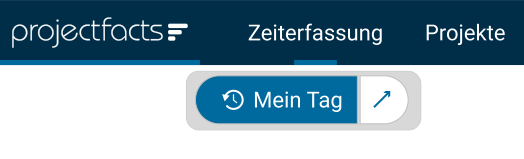

This new function is particularly useful when you want to compare data from two different lists or need information from a specific element somewhere else in the system. For this purpose we have additionally set up the option to open the last tile used in a new tab or window (depending on whether you use projectfacts in the browser or as a PWA in its own window). This way you can place both windows side by side or quickly switch between tabs. Working in multi-window mode becomes even more intuitive.
You can also display this form of navigation as a second menu bar if you wish. It then replaces the previously familiar bar that you use to switch between tiles within a module. Or you can hide the second menu bar completely and thus obtain a particularly “clean” interface.
Customisable menu items and structures
Previously, the projectfacts menu was oriented to the modules you use. With the new version we lift this rigid structure and instead let you decide yourself what the menu should look like for your company. This gives you almost complete freedom in composing and arranging your menu items.
You can orient the menu to your workflow, e.g. with the following menu items:

Or you can align the menu according to your departments, e.g. like this:

Customising individual menu items
In the configuration you will find in projectfacts 2022.1 the new item “Menu” in the “General” category. There you make all the settings for your new menu.
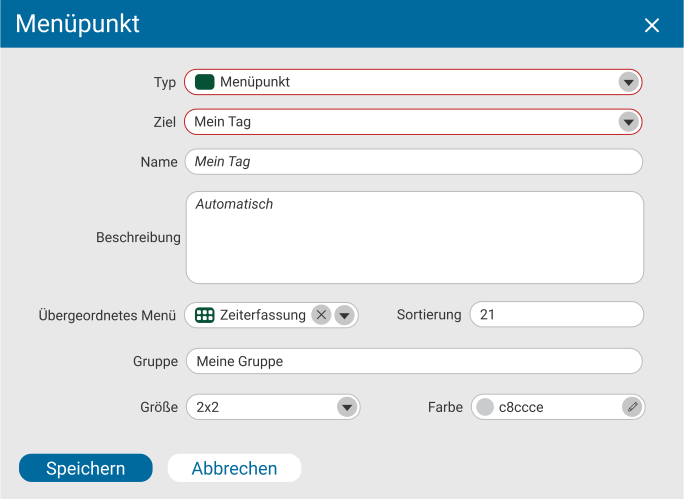
Here you will first find an overview of your main menu items. These correspond to your current modules. Via the context menu (three dots at the top right of the tile) you can edit the menu item. The following fields are particularly interesting:
- Type: Indicates that this is a main menu item. Subordinate menu items, elements or external URLs are also possible.
- User group: Which departments or people within your organisation should have access to the menu item? Please note that existing access rights continue to apply.
- Name: A placeholder corresponding to the current module name is entered here initially. You can overwrite it with your own name. Please note that this name is also set in other language versions; it is not translated automatically.
- Description: Enter a brief description in this field of what is contained under your menu item.
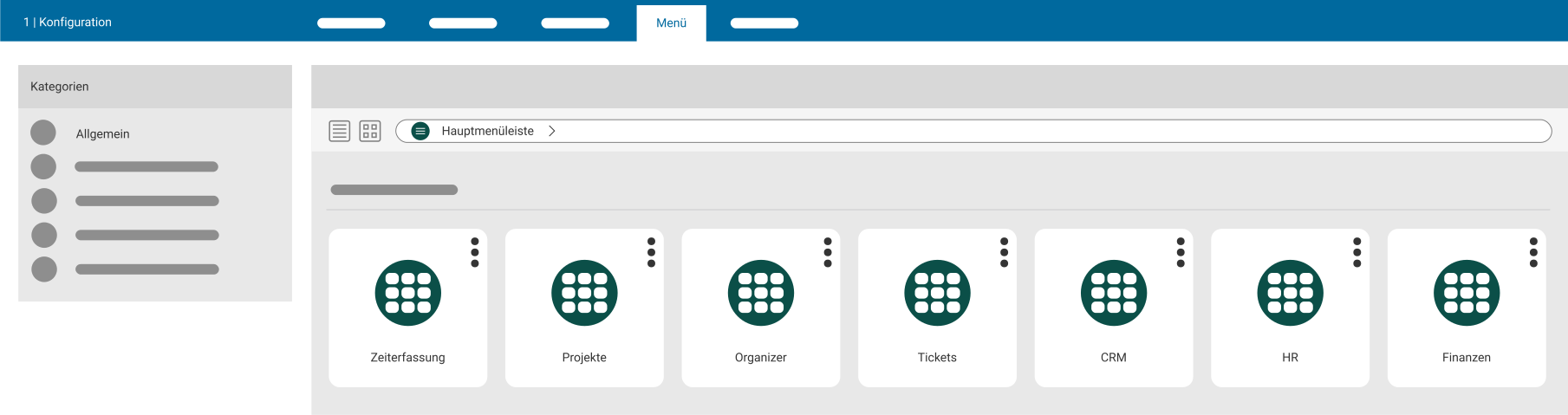
When you click on one of the menu items, you go one level deeper to the tiles assigned to the menu item. The symbol shows you that these are now sub-menu items. Click on one of the tiles to edit it as well. For tiles, the following options are also interesting in addition to the fields mentioned above:
- Parent menu: The associated main menu or the next higher menu item is entered here by default. If you change this entry, you move the tile to a different menu.
- Group: Using the group you can group tiles on a menu level into sections. All tiles in this group then appear under a shared heading. Simply enter the desired name for the group in all tiles you want to assign to it.
- Size: This determines the size of your tile. The default size is “2×2”. This corresponds to the tile size you are accustomed to in projectfacts. The first digit indicates the width, the second the height. A very small tile is obtained with “1×1”, a wider one with “4×2”, etc.
- Colour: Choose what colour your tile should have. You can freely select the colour via the “colour picker” or enter a hex code.
Sorting and structuring menu items
You have various options for arranging menu items as you like. Below we present three variants:
Sorting
You can change the order of your menu items as you wish. Simply drag the menu item to the desired position using drag & drop. Alternatively, edit the sorting in the context dialog via the “Sorting” field.
Nesting
Subordinate a tile to another main menu item. Drag the desired tile onto the main menu item it should be subordinate to. An animation indicates that the tile is being moved as soon as you release the mouse button. Alternatively, you can also change the parent menu via the context dialog.
Grouping
Grouping is another option with which you can combine thematically similar tiles. Simply assign a name for the group you want to create and enter it in the “Group” field in the context dialog. The tile then appears in its own menu area under the name you have assigned. Add further tiles by entering the group name there as well.
Adding new elements
To add new elements to your menu, click on the plus symbol. Via the type field you select whether it should be a main menu item, a subordinate menu item, a concrete element or a URL.
If you add a new element, you must then select the element type, e.g. an organisation or a board. Once you have chosen a type, a field appears to the right of it. Use this to specify the concrete element that should appear in the menu.
You can also store an external URL, e.g. a link to your website or to other relevant web content. Simply set the type to “URL” and paste the desired URL into the field below.
Intelligent search function
You may have wondered whether the search still works when menu items no longer match the modules. The answer is yes. Even if you combine tiles from different modules in your menu items, projectfacts continues to search the correct content.
If one of your menu items includes tiles from the “Forum”, “Wiki” and “Files” modules, for example, all elements from these three modules are also searched via the menu search. You therefore don’t need to worry about this when composing your menu, because the intelligent search thinks ahead for you.
Improved user guidance
In order for you to work as efficiently as possible with projectfacts, we have revised the user guidance at many points in the system. We present the most important changes below:
Revised list view
The plus button is larger and therefore more recognisable. It is the central point of contact for creating new elements in a list. At the same time, many action boxes on the left side have been slimmed down. They are now limited to those actions that are useful for the workflow at that particular point.
Filters and favourites no longer change their colour when they are set, but remain in their familiar appearance. Multiple selection has also been revised. It is now integrated into the upper menu bar, allowing better selection of elements. Selected list entries are marked and can be selected and deselected as desired.
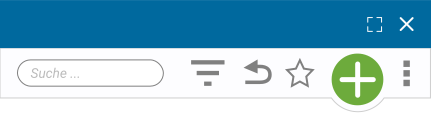
Via the “x” you close the current list and return to the dashboard. List icons have also been improved. Some have been replaced by better-fitting icons or their arrangement within the list has been adjusted.
Slimmer dialogs
Central dialogs in projectfacts have been revised. The arrangement of fields is more strongly oriented to the workflow. Name fields have been widened so that longer entries are more legible.
The assignment area in the lower half of dialogs has been removed, as it was only needed in exceptional cases. Assignments can still be viewed and edited via the master data of the respective elements.
Messages and personal notifications
You are already familiar with messages and personal notifications from previous projectfacts versions. In the new version, messages have received a new icon. They also appear at additional points in the system.
Previously, messages were only displayed in the main menu bar for the respective module. From now on you can also access them in the floating menu. In the address bar all messages are summarised that relate to the respective menu item. In addition, they now also appear on the respective tile in the upper right corner. This allows you to distinguish messages more quickly by topic and priority.
Extended sidebar
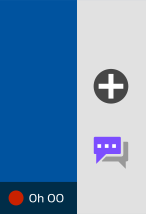
The sidebar has been expanded with two new elements:
- Create new: Using this button you can create new elements at any time (e.g. a contact or a document), regardless of which module or list you are currently in. It replaces the button for “All actions” in the status bar.
- Chat: You can now start the pfChat via the sidebar (provided it is activated in your organisation). Previously the button for this was in the status bar.
The support mode has moved. Instead of under “Help and information” as before, you will now find it under your personal avatar. The help area has also been revised. In addition to the online manual, you will now find further social media channels of 5 POINT AG here.
Questions, wishes or feedback?
Would you like to find out more about the new user experience in projectfacts? Do you have questions or wishes regarding the new functions? Then contact our consulting team. We are happy to help.
You are not yet using projectfacts but would like to try it out? Then sign up for a free and non-binding trial period.