
How to Specify VAT Rates in the Financial Accounting Export
The reduction in VAT also changes the requirements for the financial accounting export. Read how to export these correctly.
The temporary reduction of VAT rates also changes the requirements for the financial accounting export. Below we show you two new ways to specify VAT rates in the export.
Assigning Special Contra Accounts
First, you need to create specific accounts in the system. To do this, navigate to “Configuration” and select the “Finance” category. Select the “Accounts” tile here and create the required accounts.
Then call up the “Settings” tab in the “Finance” category. Expand the “Documents” section and scroll down to the “Special VAT Settings” section.
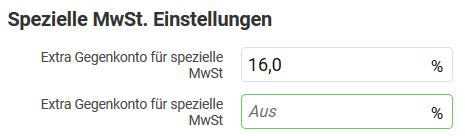
Here you can set conditions for up to two extra accounts. For example, if you enter 16% in the first field, services invoiced at 16% tax can be automatically assigned to the corresponding account. However, you must first assign the accounts to the items.
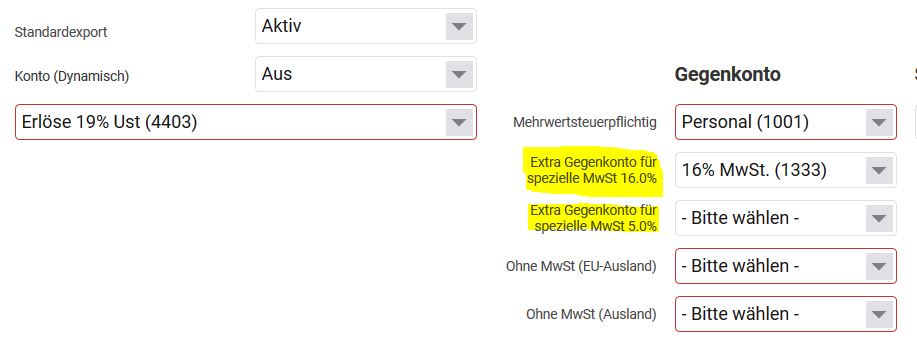
Select the “Items” tab at the top and open the item to which an account is to be assigned. Scroll down in the item master data to the “Item Extension Booking Export” section. Here you will find the extra accounts under contra accounts.
When you now use the financial accounting export, an item taxed at 16% will automatically be assigned the special contra account.
BU Field Mapping in the Financial Accounting Export
It is now possible to specify a BU mapping in the export. To do this, navigate to “Configuration” and then to “Finance”. Select the “Settings” tile and then the “Documents” section. Scroll down to the “Special VAT Settings” section. Here you will find the “DATEV VAT to BU Field Mapping” field.

Here you can assign specific BU values to VAT rates. In the screenshot above, for example, a tax rate of 5% is indicated by the value 49. 19%, on the other hand, is coded with 9. In the screenshot below you can then see the corresponding value in the “BU Key” column. It is best to discuss with your tax advisor which tax rate needs to be coded with which value.
