
New Options for Adjusting VAT
So that you can adjust the VAT reduction quickly & easily with projectfacts, we show you new ways & options for implementing this.
The recently decided change in VAT from 19% to 16% poses major challenges for some companies. Which invoices need to be changed, what adjustments need to be made in the system and how can all of this be implemented with the least possible amount of effort?
In projectfacts, two new functions for adjusting VAT are therefore now available to you. So that you can see at a glance which VAT rate is currently being applied, this is now also visible in the overview of line items.
Please note that below we are only presenting options for adjusting VAT rates in projectfacts. Please discuss with your tax advisor which tax rate actually applies to your specific services.
1. Individual adjustment of a tax rate at line item level
If you are looking for a simple way to change the tax rate of a specific line item in a document, you can now manually edit the “Tax rate” field in a line item. To do so, proceed as follows:
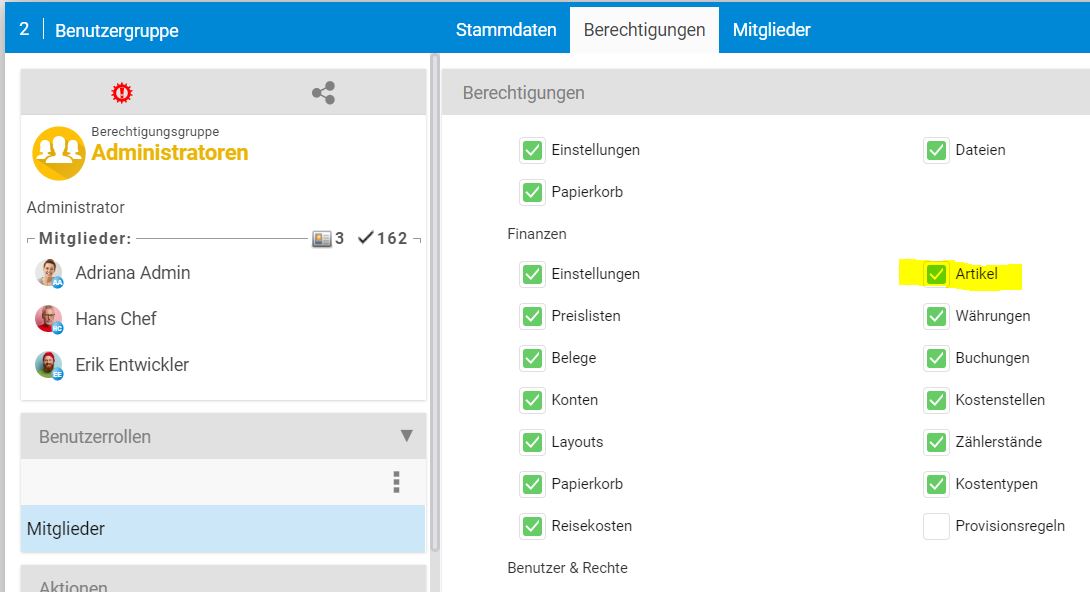
Open “Configuration” and select “Users and Permissions” on the left side. Click on the “User Groups” tile. Open the user group that is to receive the permission to edit the VAT rate, or the user group to which you belong. Now open the “Permission – Configuration” tab and scroll to the “Finance” section. There, tick the checkbox for “Article”.
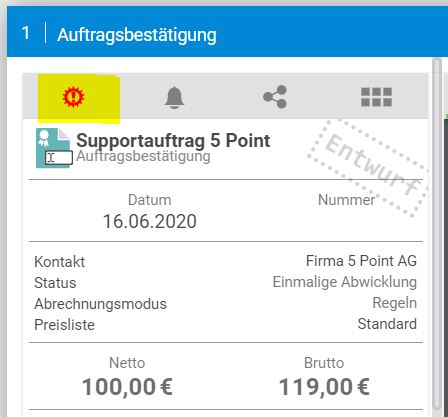
Now open an invoice and activate administrator mode by clicking on the grey gear icon on the left side. You can tell that the mode has been activated by the fact that the gear icon is displayed in red.
Open the line item of the invoice that you want to change. The “Tax rate” field is now editable. Here you can adjust the VAT rate individually for this line item.
2. Automatic adjustment of the tax rate based on the date of service provision
Which VAT rate applies to a service generally depends on the date of service provision. Against this background, projectfacts now features the new “VAT correction mode”. This automatically adjusts the tax rate in line items based on various date entries. This works for the document types Quotation, Order and Invoice.
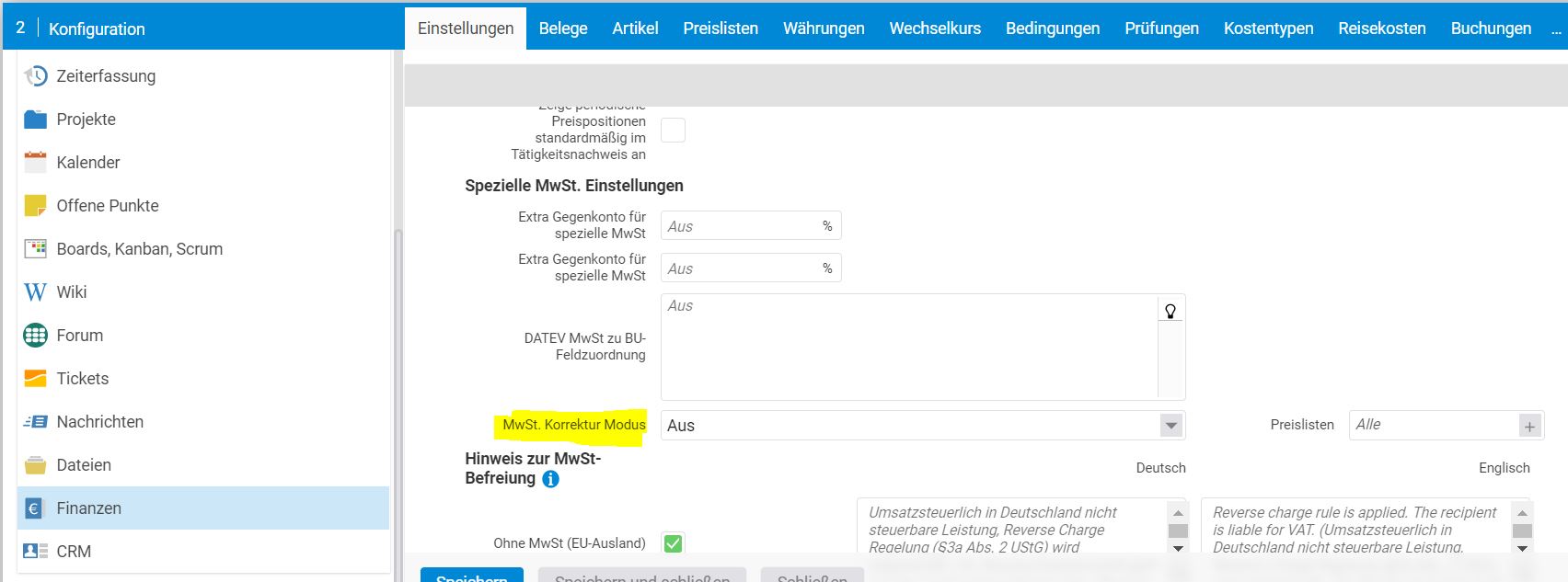
To activate the mode, navigate to the Configuration. Select the “Finance” category and click on the “Settings” tab. Expand the “Documents” list. Scroll to the “Special VAT settings” section and select “Germany VAT reduction” from the dropdown field. To the right of it, you also have the option of selecting whether you want to apply this function system-wide or restrict it to specific price lists.
Once the function is activated, projectfacts automatically adjusts the VAT in a line item for services in the period from 01.07.2020 to 31.12.2020. To do this, various date fields are checked according to a fixed hierarchy.
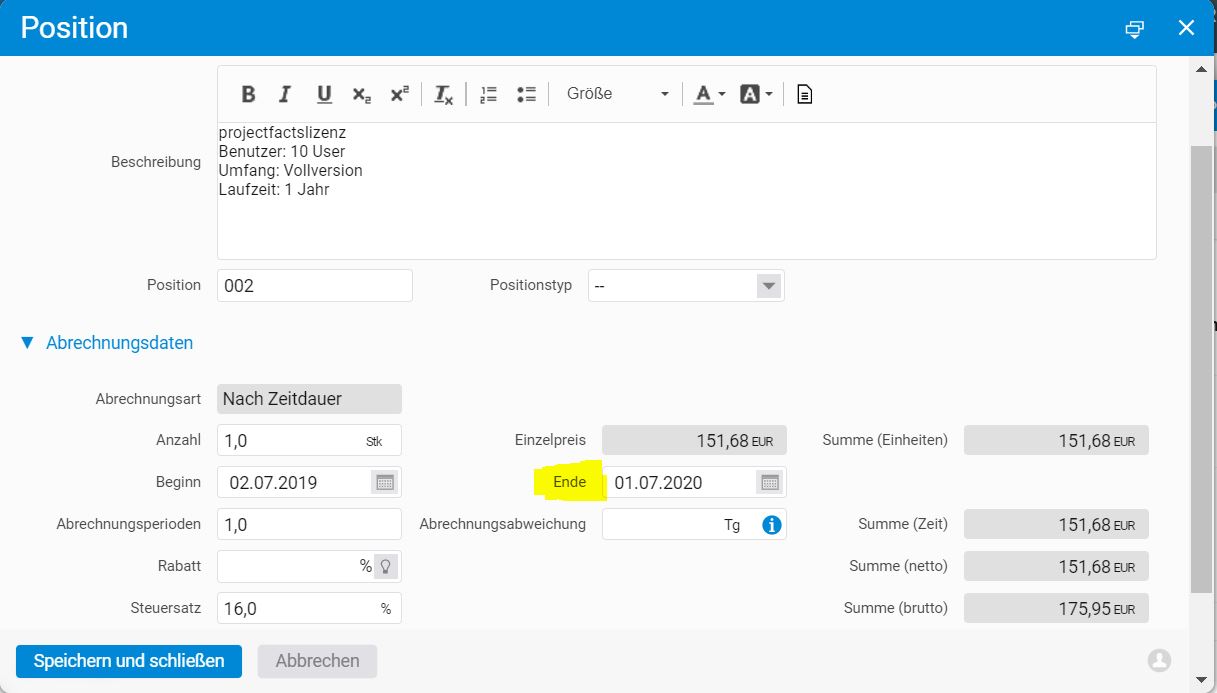
First, the “End” field in a line item is checked. If this date falls within the stated period, the VAT is set to 16%.
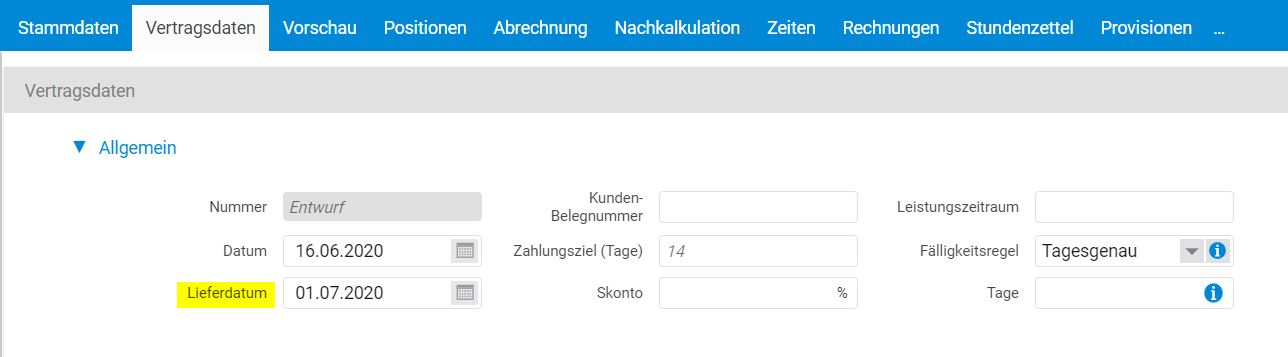
If this field contains no information, the delivery date is used next.
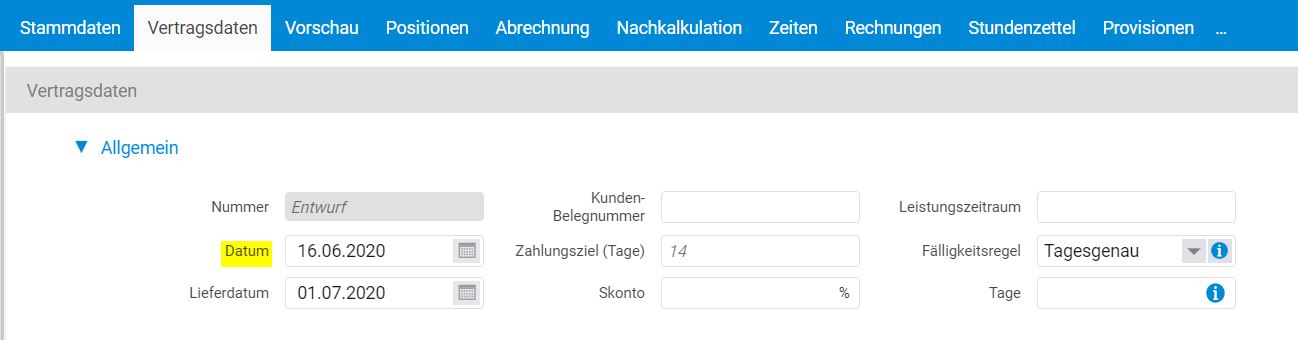
Should this field also be empty, projectfacts uses the document date.
Please note: If you have manually adjusted the VAT rate using the first method described and the “VAT correction” is activated at the same time, it may happen that the manually entered value is overwritten. This is always the case when one of the date fields listed above is adjusted again after a VAT rate has been entered.