
Overview of Microsoft Teams Calls
See an overview of your Microsoft Teams conversations in projectfacts and conveniently log time against them.
Working effectively with Microsoft Teams conversations
In times of home office, days often consist of a series of Microsoft Teams meetings. Keeping track of everything is not easy, as appointments are often spread across different calendars or only a meeting URL remains.
In most cases you want to follow up on a Teams conversation, for example by sending an e-mail. To do this, you would have to look up the address in your e-mail programme and then assign it to the correct call. Productive work looks different.
That is why projectfacts with version 6.11 offers you the ability to automatically log Teams calls. Via the phone interface you can see all conversations you have had via Microsoft Teams in recent days and, for example, log time against them or send an e-mail.
Integrating Microsoft Teams
To view Teams calls in projectfacts, the interface must first be activated and set up.
For the setup, switch to the General menu item in the Configuration. Select Interfaces there. First you need to grant projectfacts administrator permission via the Grant access to Microsoft Graph button.
Then assign your employees to the appropriate users via the Assign Azure AD users button. Finally, click on the Activate Teams call history button.
Teams calls in the overview
You have two options for accessing your Teams calls in projectfacts. You can use the phone interface in the sidebar or switch to the call list in the CRM module.
Phone interface in the sidebar
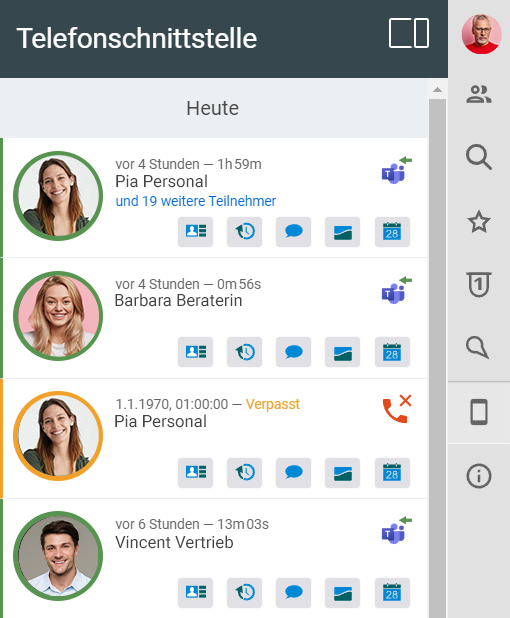
Via the telephone symbol in the sidebar you can access all incoming and outgoing calls. There you will also find all Teams conversations from the last seven days in the overview. You can distinguish these from other calls (e.g. via the landline) by the Teams symbol in the top right corner, provided you have also integrated your phone system in projectfacts.
Incoming calls are marked with a green arrow pointing left, outgoing calls with a blue arrow pointing right. The list shows you the time and duration of the call as well as the main contact with whom the conversation was held. For group meetings with multiple people, you also see the number of additional participants.
Call list in the CRM module
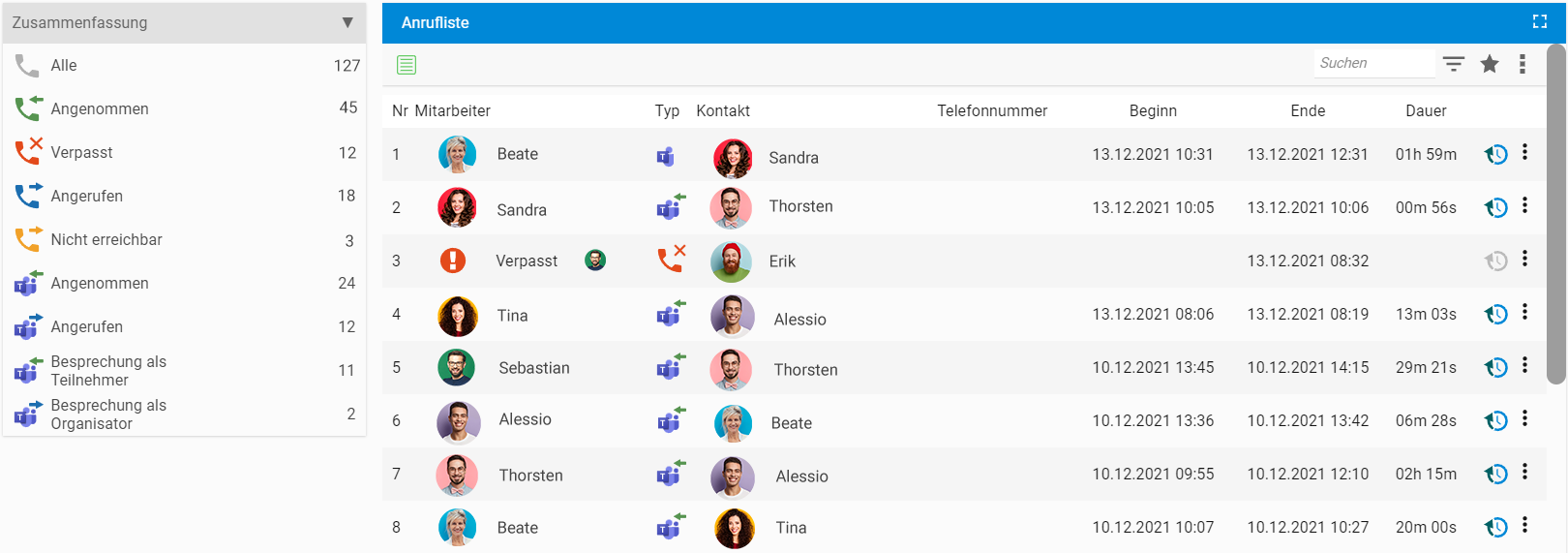
You will find a detailed overview of your Teams conversations in the call list. Depending on your authorisation, you also have the option here to view the calls of your employees.
Use the quick filter at the top left to switch between incoming and outgoing calls. You can also distinguish between Teams meetings that you joined as the organiser or as a participant.
The list contains all registered calls with start and end times as well as the duration of the conversation. Clicking on any row takes you directly to the main contact of the call, provided they are stored in the CRM.
Actions for Teams calls
Both in the sidebar and via the call list, you can perform a range of actions with your Teams conversations that help you in your work.
Jump to contact: If your call partner is already stored in the CRM database, you can jump to the contact with one click. There you will find all processes related to the contact.
Create new contact: If the call partner is not yet recorded in the CRM, you can create a new contact with one click.
Log time: Time tracking for Teams calls is now particularly easy, as you can assign a time directly to a call. Simply click on the time tracking symbol – the meeting duration and your conversation partner are automatically transferred to the booking.

Document CRM process: Documenting customer processes without gaps is important for sales work and makes it easier for your team. That is why you can create a suitable CRM process for every Teams conversation. With follow-up reminders, you can, for example, easily be reminded of a callback.

Create ticket: Would you like to write a follow-up e-mail to a Teams call? In projectfacts, simply click on the ticket symbol. The salutation and e-mail address are automatically taken from the assigned contact. This saves you lengthy searching and means you do not have to switch between applications.
Create appointment: A Teams conversation is often followed by another appointment. With the projectfacts calendar this is no problem, as new Teams appointments can also be created directly in projectfacts with version 6.11. Find out how to do this in our blog post on Microsoft Teams meetings
Setting up the phone interface
Are you interested in the Microsoft Teams integration in projectfacts? Simply contact us – our advisory team will be happy to help you with the setup.
Not yet using projectfacts? projectfacts offers you a digital all-in-one solution for your company. Try the software for 14 days free of charge and without obligation.