
Microsoft Teams
Teams calls land in the call list automatically and Teams meetings are created straight from the projectfacts calendar. Without copying meeting URLs.
Enquire nowWhat the Microsoft Teams integration does
The integration connects projectfacts to your Teams tenant through Microsoft Graph and covers two directions: Teams calls are logged automatically and appear in the phone interface, and Teams meetings are created straight from the projectfacts calendar.
That removes the hunting around. Anyone wanting to send an e-mail or book time after a Teams call previously had to look up the address in their mail client and match it to the right call. Now both hang off the logged conversation.
What the Teams integration is for
Calls logged
Every Teams call of the last seven days in the phone interface, with time, duration and main contact.
Meetings from the calendar
Create Teams meetings in the usual appointment dialogue; Microsoft sends the invitations.
Pick up where you left off
Book time against a call or send an e-mail without looking up the address.
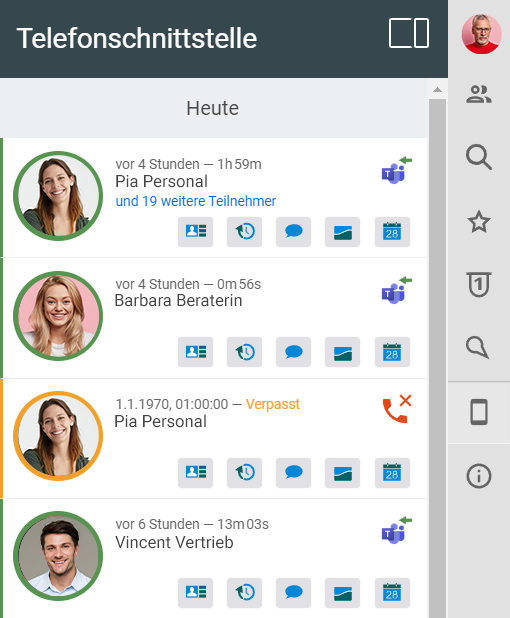
Teams calls
Every conversation in the phone interface
The telephone icon in the sidebar gives you access to all incoming and outgoing calls, including every Teams conversation of the last seven days. If you have also connected your telephone system, Teams calls can be told apart by the Teams icon in the top right corner.
Incoming calls are marked with a green arrow pointing left, outgoing ones with a blue arrow pointing right. The list shows the time and duration as well as the main contact, and for group meetings the number of further participants.
- Teams conversations of the last seven days
- Incoming and outgoing distinguished by colour
- Main contact and participant count at a glance
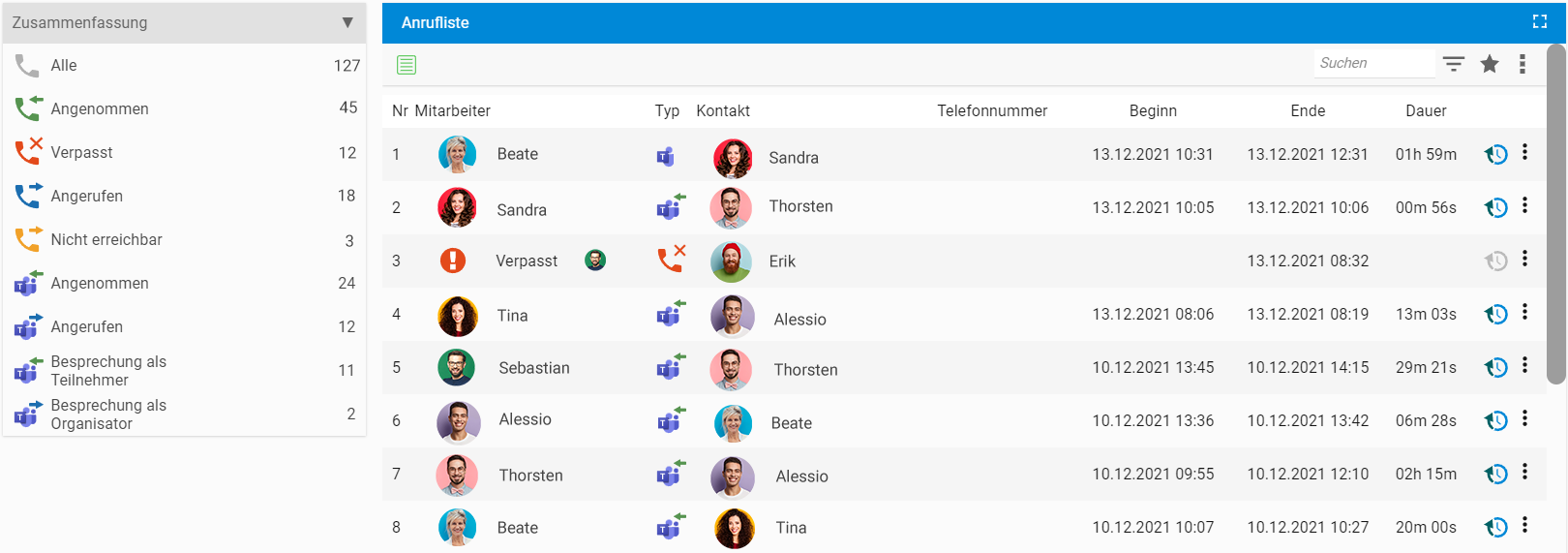
Call list in the CRM
A detailed view of your Teams conversations
The full overview sits in the call list of the CRM module. Depending on your permissions you can also see your colleagues' calls there.
The quick filter switches between incoming and outgoing calls and distinguishes Teams meetings by whether you joined as organiser or as participant. Clicking a row takes you to the main contact of the call, provided it is stored in the CRM.
- Start and end time plus duration per conversation
- Filter by direction and by organiser or participant
- Jump to the main contact with one click
Connect Teams and projectfacts
In a free initial consultation we go through the setup and show what the connection brings to your team's working day.
Request a consultation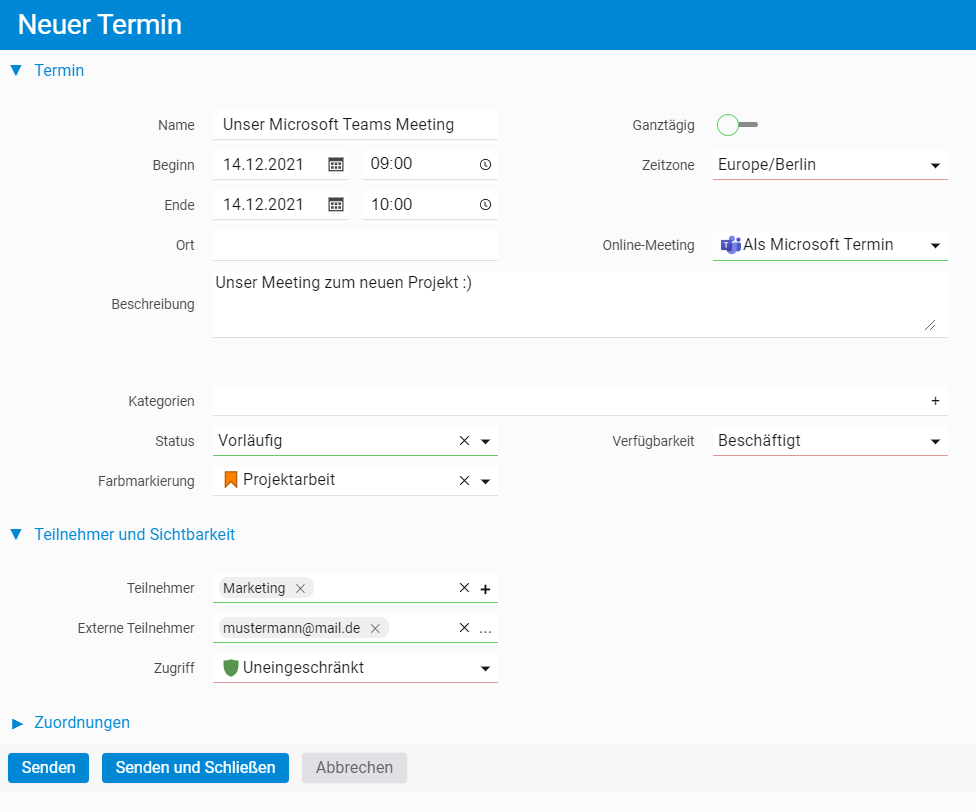
Teams meetings
Create meetings directly in projectfacts
You click the plus symbol in the team calendar as usual and choose a new appointment. In the online meeting field you select the Microsoft option, enter the appointment details and add the participants, groups and people from your organisation as well as external guests.
Once you send it, Microsoft automatically issues the invitations to everyone on the list, with the title and description text carried into the mail. If you later change the time or the description, an updated invitation goes out automatically.
- Create a Teams meeting in the usual appointment dialogue
- Add internal and external participants
- Invitations and updates sent automatically
How the interface is set up
The connection is enabled once in the configuration. Our consulting team will support you with it.
Three steps in the configuration
In the configuration you go to the general menu item and choose interfaces. The button for granting access to Microsoft Graph gives projectfacts the administrator consent. You then assign your employees to the matching users through the Azure AD user assignment.
For call logging you finally activate the Teams call history. For meetings the first two steps are enough.
- Grant access to Microsoft Graph
- Assign Azure AD users to your employees
- Activate the Teams call history
Your benefits at a glance
No scattered meetings
Appointments and calls sit where you already work.
Billable
Book time directly against a Teams conversation.
Traceable
Every conversation can be found on the contact and in the call list.
Still have questions? We have the right answer!
Would you like to connect Microsoft Teams to projectfacts? Our consulting team will support you with the setup.